Switching from an iPhone to an Android device – whether a Google Pixel, Samsung Galaxy, or another brand – doesn’t have to be a data-transfer nightmare. While the process can seem daunting, modern methods make it remarkably straightforward. The key lies in understanding the right tools and steps to ensure a smooth transition.
Why This Matters
The mobile landscape is shifting. More users are exploring Android for its customization options, open ecosystem, and competitive pricing. However, a major barrier to entry is the perceived complexity of moving data from iOS. Simplifying this process removes a significant hurdle for potential switchers, making Android more accessible.
The Universal Solution: Adapters and Cables
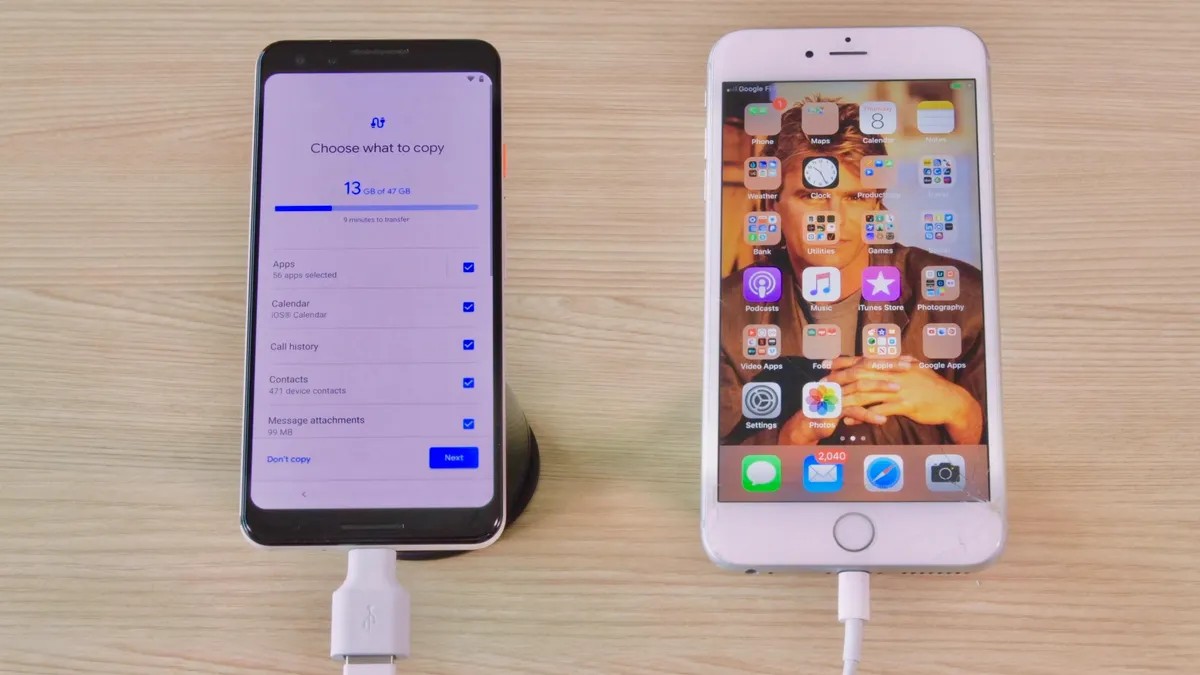
The most reliable method for transferring data is using the adapter that Google and Samsung often include in the box (a USB-A to USB-C connector). Alternatively, a standard USB-C to Lightning cable works equally well. This allows a direct connection between your old iPhone and new Android phone. Think of it as a physical pipeline for your digital life: photos, videos, music, files, and even app data can flow seamlessly.
What You Can Transfer
- Media: Photos, videos, and music files transfer without issue.
- Apps: Free iOS apps often have Android equivalents that can be automatically downloaded.
- Messages: While iMessage won’t work on Android, you can move your message history using the methods below.
Switching to a Google Pixel: A Step-by-Step Guide
If you’re upgrading to a Google Pixel, the process is streamlined:
- Charge Both Phones: Ensure both devices have sufficient battery life.
- Disable iMessage: Crucially, turn off iMessage on all Apple devices associated with your Apple ID (Settings > Messages > Toggle off iMessage). Failing to do so can cause messaging issues.
- Connect & Copy: Use the Quick Switch Adapter (QSA) or a USB-C to Lightning cable.
- Trust & Sign In: Tap “Trust” on your iPhone when prompted, then sign into your Google Account on the Pixel.
- Select Data: Choose what to transfer (photos, music, messages, etc.) and tap “Copy”.
- Wait & Verify: The transfer duration depends on the amount of data. Once complete, confirm everything migrated correctly.
Switching to a Samsung Galaxy: Flexibility and Speed
Samsung provides similar transfer options, with an emphasis on flexibility:
- Charge & Disable iMessage: Same as Pixel.
- Smart Switch App: Open the pre-installed Smart Switch app on your Galaxy phone.
- Choose Transfer Method: Select “Receive” and then choose between a wired (adapter or USB-C to Lightning) or Wi-Fi transfer.
- Trust & Connect: Tap “Trust” on your iPhone. If prompted, enter your Apple ID password for encrypted backups.
- Start Transfer: The Galaxy phone will connect to your iPhone and begin the data transfer. You can start using your new phone immediately while the transfer runs in the background.
The Bottom Line
Migrating from iPhone to Android is no longer a complicated ordeal. With the right cable, a few simple steps, and a little patience, you can move your digital life with minimal friction. The key is disabling iMessage beforehand to avoid messaging problems. The choice between Google’s or Samsung’s methods comes down to preference, but both provide a reliable path to Android.