
You press the power button. The screen lights up. You click an icon. It feels like you are the conductor of an orchestra, waving your mouse to summon Spotify or Chrome. But that sense of total control is an illusion.
There is a silent worker behind the glass. It handles the messy, complex logic so you don’t have to. That worker is the operating system.
Without it, your hardware is just expensive paperweight. The OS is the manager. It decides which program gets to use the CPU. It routes data to the printer. It keeps the memory from crashing when you open too many tabs.
The Big Players on Desktops
Microsoft Windows still dominates the personal computer market. It is the default for most office work and gaming rigs. Apple users live in macOS, which is tightly integrated with the hardware.
Then there is Linux. You know it as the engine of the internet. It runs most of the servers that keep websites online. But Linux isn’t just for sysadmins anymore. Distributions like Ubuntu or Fedora have become surprisingly friendly for everyday users who want to avoid the Microsoft ecosystem.
Mobile and Embedded Ecosystems
The smartphone landscape is a duopoly. Google’s Android holds the global majority. Apple’s iOS owns the high-end market in countries like the US.
Some manufacturers try to break away. Huawei uses its own HarmonyOS. Samsung has pushed One UI heavily. But most Android skins remain rooted in the same underlying kernel.
Apple doesn’t just stop at phones. The iPad runs iPadOS. The Apple Watch runs watchOS. The TV box runs tvOS. Each is a variation on the same theme: strict control, high security, and deep hardware integration.
Beyond the Screen
We often forget that everything has a brain now. Your smart fridge has one. Your TV has one. Your car’s infotainment system runs a custom OS, often based on QNX or Android Automotive.
Self-driving cars are a different beast entirely. Their operating systems must process sensor data in milliseconds. A lag there isn’t just an annoyance. It is a liability.
What Actually Makes It an OS?
Not every software is an operating system. A word processor is not an OS. A web browser is not an OS.
To earn the title, the software must do three things:
- Manage Hardware: It talks directly to the CPU, memory, and storage.
- Provide a User Interface: It gives you a way to interact, whether via a mouse or a touchscreen.
- Run Applications: It provides the environment where other software lives and executes.
“An operating system is the bridge between your intent and the machine’s capability.”
Without this bridge, you cannot run apps. You cannot save files. You cannot connect to Wi-Fi. You are stuck.
Why This Matters to You
Understanding your OS matters because it dictates your security, your privacy, and your flexibility. Windows updates can force restarts. macOS locks you into Apple services. Linux offers freedom but demands maintenance.
In the next sections, we will break down exactly how these systems work. We will look at the kernel. We will discuss the user interface. And we will show you how to take back some of that control you think you have.
Why Most Gadons Skip The OS
You might assume every chip running code needs a full-blown operating system. It doesn’t. Take the computer inside your microwave. It does one job. It heats food. The input is a keypad. The hardware never changes.
An elaborate OS here is just baggage. It drives up costs. It adds complexity where none is needed. Instead, these devices run a single hard-wired program. This is an embedded system. It runs constantly. It doesn’t boot up. It doesn’t update. It just works.
But for other devices, the rules change.
The Value of an Operating System
Why do we bother with OSes? Because they allow flexibility. Without one, you’re stuck with what the hardware manufacturer decided you should do. An operating system creates the ability for:
- Serving a variety of purposes on the same hardware
- Interacting with users in complicated ways
- Adapting to needs that shift over time
This is why every desktop computer ships with one. You have the Windows family from Microsoft. You have macOS from Apple. Then there’s the UNIX family, a patchwork quilt of individuals and corporations over decades. Beyond these, hundreds of other systems exist. They specialize in mainframes. Robotics. Manufacturing. Real-time control.
The Power of Portable Code
Here is the key difference between a microwave and your laptop. One can be modified. The other cannot.
Operating systems use portable code rather than permanent physical circuits. This isn’t a happy accident. It’s a design choice. It allows changes without scrapping the device.
For a desktop user, this means survival. You get a security update. You install a patch. You add a new application. If the OS gets too bloated or incompatible, you can install a completely new one. You don’t throw the computer in the trash. You don’t start over with new hardware. As long as you know how to get into the system, you can change how it behaves.
What Does an OS Actually Do?
Strip away the UI. Remove the icons. What remains?
At its simplest, an operating system performs two critical functions.
First, it manages resources. This applies to computers, tablets, and smartphones. It handles the processor. It allocates memory. It manages disk space. It juggles it all.
Second, it provides a stable interface. It gives applications a consistent way to talk to hardware. The app doesn’t need to know the voltage of the CPU. It doesn’t need to know the sector mapping of the hard drive. The OS abstracts the details. It lets the software run without knowing the machine’s secrets.
This abstraction is why your software works on different machines. It’s why you don’t have to write a new driver every time a new graphics card comes out. The OS handles the translation.
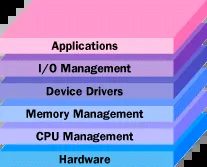
Think of the central processing unit (CPU) as a crowded kitchen during dinner rush. Multiple programs are screaming for attention. Some need more memory. Others demand heavy I/O bandwidth. Without order, it’s chaos. The operating system steps in. It acts like a strict but fair parent. Its job? Allocating resources so no single app crashes the party. It manages limited capacity for the greater good of every user and application running simultaneously.
Why Consistency Matters
The second major responsibility is providing a consistent user interface. This becomes critical when you deploy multiple computers of the same type. Or if you swap out hardware components. A standardized application programming interface (API) is the secret sauce.
Developers rely on this consistency. They write code once. They deploy it across different machines. They do this with high confidence that the software will still function. Even if the target machine has different amounts of RAM or storage space. The API abstracts the hardware differences. The developer doesn’t need to rewrite the core logic for every specific configuration.
Handling Hardware Diversity
Even on a unique, custom-built machine, the OS keeps things stable during upgrades. This happens because the operating system, not the application, controls the hardware. The app just requests services. The OS delivers them.
This creates a massive challenge for developers. They must keep their operating systems flexible enough to support thousands of vendors. You walk into a store today. You can build a PC with a printer from Brand A, a disk drive from Brand B, and a specialized peripheral from Brand C. The OS must handle any combination. It abstracts the complexity. It ensures your software runs regardless of the underlying silicon.
Types of Operating Systems

Most people just click a mouse and expect the screen to do what they want. But behind that cursor is a complex hierarchy of software types. They aren’t all built the same way. The category depends on what the computer controls and what apps it runs.
The Hard Real-Time Systems
Real-time operating systems (RTOS) don’t care about your desktop wallpaper. They control machinery. Scientific instruments. Industrial automation.
An RTOS is a sealed box. It has no user interface. No end-user utilities. Just pure function. The goal is precision. A specific operation must take the exact same amount of time every single time it runs.
Why does this matter? Imagine a complex machine. If a robotic arm moves faster than scheduled just because the system was idle, it might crash into something. Catastrophic. If it moves slower because the system is busy, the production line stops. Both outcomes are failures. Consistency is the only metric.
Doing One Thing at a Time
Single-user, single-task systems are relics in some ways, but they exist. They let one person do one thing. Period.
MS-DOS is the classic example. You open a program. You work. You can’t run a background download while editing text. It’s linear. Simple. Dead simple.
The Modern Standard: Single-User Multitasking
This is what you’re likely using right now. It’s the standard for desktops and laptops. Microsoft Windows. Apple macOS.
They let you juggle. You can draft a document while downloading a file and printing an email. The OS switches between these tasks so fast it feels simultaneous. It’s not. It’s just really good at context switching.
Sharing the Load: Multiuser Systems
Multiuser OSes let many people access resources at once. But it’s not a free-for-all.
The system has to balance requirements. Each user gets separate resources. If User A’s app crashes, User B shouldn’t notice. Unix. VMS. Mainframe systems like MVS. These are the heavy lifters for enterprise environments where stability across a community of users is non-negotiable.
Distributed Computing
Distributed operating systems don’t just manage one machine. They manage a network of them.
Instead of one supercomputer crushing a large problem, the OS breaks it down. Pieces go to many smaller computers. You see this in giant server farms. But it’s not just for corporations. Hobbyists and educators build their own distributed systems using cheap machines. Sometimes even repurposed gaming consoles.
It’s a way to pool power without buying a supercomputer.
Don’t Confuse Networking with Multiuser
Here is where things get muddy. A multiuser system is not the same as a single-user system on a network.
Work for a company? You’re probably on a single-user system. The admin controls what you can install. You might print to a shared printer. You might access a file server for department docs.
That’s networking. Not multiuser. The OS itself doesn’t grant concurrent access rights to different users on that specific local machine. It just talks to other machines.
The Boot Process: How the OS Takes Control
When you flip the switch, the OS doesn’t run immediately. Firmware does first.
On older PCs, this was the BIOS. Newer machines use UEFI (Unified Extensible Firmware Interface). This code checks the hardware. Does everything work? On UEFI, it also checks if the boot software is legitimate. Secure boot. No tampering.
Once the tests pass, the firmware hands off to the bootstrap loader.
The Bootstrap Loader
The boot loader has one job. Load the OS into memory. Start it up.
It’s a small program. Brutally simple. It sets up driver programs for hardware subsystems. It divides memory. Some parts hold the OS. Some hold user info. Some hold applications.
It builds data structures. Signals. Flags. Semaphores. These are the communication lines between subsystems and apps.
Then it turns the keys over to the operating system. Control changes hands.
What the OS Actually Does
Once loaded, the OS manages the core functions. They fall into buckets:
- Processor management
- Memory management
- Device management
- Storage management
- Application interface
- User interface
- System security management
These are the pillars. Every OS, from your phone to a supercomputer, touches these seven areas. The tools they use to execute these functions vary wildly, but the goals remain the same. Keep the hardware alive. Keep the software running. Keep the user from crashing the whole thing.
Processing power is a finite resource. If you want your computer to handle a video call while downloading a large file and running a virus scan, the CPU has to divide its time. It’s not magic. It’s math. And it’s managed through a strict hierarchy.
The operating system doesn’t just look at your open application. It looks at processes. A process is any piece of software performing an action. You might think of your web browser as a single entity. It isn’t. It’s a process, yes, but it spawns other processes to handle network requests, memory allocation, and rendering. There are also dozens of invisible processes running in the background, managing disk I/O or checking for malware. The OS schedules these processes, not the applications you see on screen.
Inside a process, the real work happens in threads. An application must have at least one process, and that process must have at least one thread. The scheduler manages threads down to the smallest unit of execution. This distinction matters because thread switching is faster and less resource-intensive than process switching. When you multitask, you aren’t just switching windows. You are switching CPU context between threads belonging to different processes.
The Role of Interrupts in CPU Control
The smooth flow of code is constantly interrupted by reality. Interrupts are signals sent by hardware or software to demand the CPU’s attention. Imagine a meeting where someone suddenly raises their hand. The CPU pauses whatever it’s doing to address the interrupt.
Not all interrupts are created equal. The OS can sometimes mask interrupts. This means it temporarily ignores signals from less critical sources to finish a specific task without disruption. But some interrupts cannot be ignored. These are non-maskable interrupts (NMIs). They demand immediate action regardless of what the CPU is doing.
Why does this matter to you? Consider your laptop battery. If the power drops critically low, an NMI triggers. It doesn’t wait for your word processor to save. It forces a shutdown or hibernation sequence immediately. Ignoring it would mean data loss or hardware damage. The OS prioritizes system integrity over application flow when NMIs occur.
The Illusion of Multitasking
In a single-tasking system, the schedule is simple. The app runs until it hits an interrupt or user input. But modern systems are multitasking. The OS must make it feel like everything is happening at once. Even with multicore processors, each core handles only one task at a time. The illusion of simultaneity is created by speed.
The OS switches between processes thousands of times per second. It’s fast enough that you don’t notice the gaps. But the mechanics are precise. Here is what happens during that switch:
- A process holds specific resources in RAM, registers, stacks, and queues.
- The OS assigns a set number of CPU cycles to the first process.
- When those cycles expire, the OS pauses the process.
- It saves the state of the first process: copying all registers, stacks, and queues to memory. It also notes the exact instruction pointer where the process left off.
- It loads the state of the next process: restoring its registers and queues from memory.
- The second process gets its turn.
This is called context switching. It’s efficient, but it’s not free. Copying memory and updating registers takes cycles. If you’re running a CPU-intensive task, frequent context switching can cause latency. The OS tries to minimize this by grouping related threads or giving high-priority processes longer time slices.
Why Core Count Doesn’t Fix Everything
You might buy a 16-core processor and assume your problems are solved. They aren’t. Each core is still a single-threaded executor at its heart. If your software is poorly optimized, it won’t utilize all those cores. It’ll sit on one core while the others sit idle.
This is why software optimization matters. Developers must design applications to spawn multiple threads that can be scheduled independently. If an application is single-threaded, it will max out one core and leave the rest of your expensive hardware doing nothing. The OS can schedule other processes to run on those idle cores, but it can’t split a single-threaded application across them.
The relationship between hardware and software is a constant negotiation. The CPU provides cycles. The OS divides them. The software consumes them. When one layer fails to communicate clearly, performance suffers. You feel it as lag. The system feels it as inefficiency.
There’s always a limit. No matter how many cores you add, the act of switching contexts introduces overhead. The faster you switch, the more cycles you spend switching rather than computing. It’s a trade-off. A slight delay for the appearance of concurrency. That’s the price of modern computing.
When the operating system flips between tasks, it doesn’t just guess what’s happening. It relies on a specific data structure called the process control block. Think of this as the process’s identity card and current resume combined. The OS needs every detail to pause one task and pick up another without losing its place.
Each block holds a unique ID. It points to where in the code and data the process stopped last. It captures the exact state of registers and flags. It lists open files. It tracks memory bounds and I/O status. And it defines priority.
Without these details, the OS would be blind when switching context.
A process isn’t always active. Sometimes it’s suspended. Maybe it’s waiting for a keystroke. While it waits, it consumes zero CPU cycles. It sits idle. When input arrives, the status shifts. The system moves it from pending to running. Then the process control block becomes the directive. It tells the switching mechanism exactly how to resume execution.
This happens silently. You don’t see the swap. You just see smooth transitions. Each process gets enough CPU time to do its job. But there’s a limit. If you open too many apps, the OS struggles. It uses more cycles to save and restore registers. The queues get longer. The stacks get deeper.
Eventually, the system spends more time switching than working. This is thrashing. It’s the digital equivalent of mental overload. The computer tries to do too much at once. It chokes. You usually have to intervene. Close apps. Restart. Bring order back to the chaos.
Developers try to design around this. They build safeguards. But you can help. Add RAM. Close tabs. Let the OS manage resources efficiently.
So far, we’ve looked at single-CPU scheduling. Most modern machines have multiple cores. The OS must divide work across them. It balances demand against available cycles.
Asymmetric operating systems reserve one processor for the OS itself. Application processes get the rest. The OS handles its own housekeeping separately.
Symmetric operating systems distribute work differently. They balance demand and availability across all processors. Even if only the OS is running, the load is shared. Memory is shared too. This applies to multi-core chips as well.
You might be running a symmetric system right now. It’s common in modern environments.
If the OS is the only thing needing execution time, CPU isn’t the only bottleneck. Memory management becomes the next priority.
Memory Storage and Management
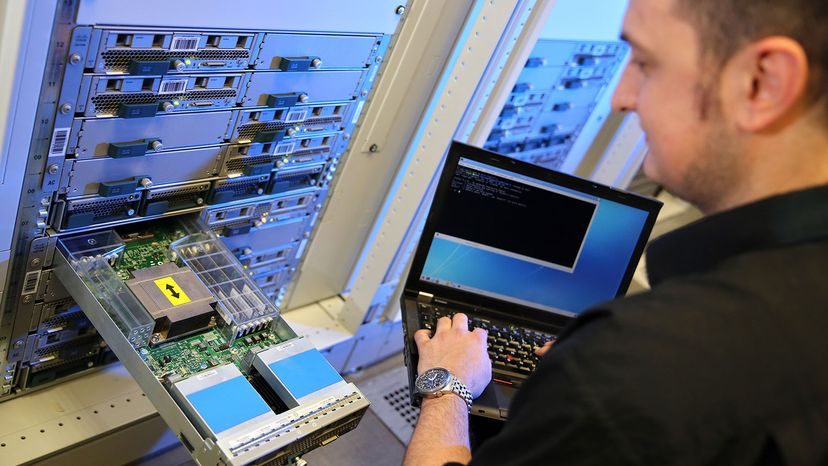
Operating systems are essentially traffic cops for your computer’s memory. They have two main jobs. First, they ensure every process gets enough space to run without stepping on another application’s toes. Second, they manage the different types of memory hardware to keep things moving as fast as possible.
The first job is all about boundaries. The OS creates strict fences between software types and individual apps.
Take a simple example. Imagine a tiny system with just 1 megabyte of RAM. During boot, the operating system claims 300 kilobytes for itself. Then it grabs 200 kilobytes at the bottom of the pool for hardware drivers. That leaves exactly 500 kilobytes for your actual applications.
When you launch programs, the OS assigns them chunks of that remaining space. If you open a new app while others are running, the system might throttle back open windows to free up resources. But what happens when that 500-kilobyte space is completely full?
You could buy more RAM. Most modern PCs let you upgrade from 8 to 16 gigabytes or more. But even with massive amounts of memory, a processor can only access one location at a time. Most of your RAM sits idle while the CPU crunches through active data.
This is where virtual memory management comes in.
The OS constantly swaps unused data out of RAM and brings in the data the current process needs. It creates the illusion that each process has its own private, expansive space. This prevents processes from corrupting each other and keeps the system stable even when physical memory is stretched thin.
But disk storage isn’t the only factor. The operating system must balance needs across three distinct layers of memory, ranked by speed.
Understanding Memory Hierarchy and Page Swapping
Speed matters. If the CPU has to wait, everything slows down. The hierarchy looks like this:
- High-speed cache: This is tiny, incredibly fast memory right next to the CPU. Cache controllers predict what data you’ll need next and pull it from main memory before you even ask for it. It’s all about prediction and speed.
- Main memory: This is your standard RAM. It’s measured in gigabytes and is what you upgrade when your computer feels sluggish.
- Secondary memory: This is your hard drive (HDD) or solid state drive (SSD). It’s much slower than RAM but offers vast storage. In virtual memory management, secondary storage acts as an overflow tank for virtual RAM.
The OS juggles these layers. It moves data in blocks called pages between the available memory types as processes demand more resources. It’s a constant, invisible balancing act.
One process needs more cache? The OS shifts pages to accommodate. Another needs more physical RAM? It swaps out idle pages to the SSD.
Why does this matter to you? Because it allows your computer to run multiple heavy applications simultaneously without crashing. Without this management, your system would grind to a halt the moment RAM filled up. The OS keeps the wheels turning by deciding what stays in the fast lane and what gets parked in the slow lane.
But the trade-off is always speed. Swapping to secondary memory introduces latency. That’s why having more physical RAM often feels like a direct boost in performance. You’re reducing the need for those expensive swaps.
The OS handles the complexity. You just get the result: a system that runs multiple apps, keeps them separate, and doesn’t run out of space.
The Hidden Translator in Your Stack
Drivers are the unsung middlemen of computing. You don’t see them working, but every time you hit a key or save a file, they are busy. The path between the OS and almost any hardware not soldered to the motherboard goes straight through these programs. Their job is translation. They take the electrical chaos of hardware subsystems and turn it into high-level language the operating system and your apps can actually understand.
Think about it. The OS sees data as files. The printer sees light pulses. The SSD sees voltage levels in specific memory cells. Drivers bridge that gap. They take a file defined by the OS and translate it into bitstreams placed on storage or laser bursts aimed at paper. Without this translation layer, your computer is just a pile of expensive metal and silicon that doesn’t know what to do with itself.
Why Drivers Live Outside the Kernel
Drivers are kept separate from the core operating system for a specific reason: agility. If every new feature required a kernel modification, recompilation, and redistribution of the entire OS, we’d never see updates. Keeping drivers external allows manufacturers to add functionality to hardware subsystems without touching the foundation.
This separation also means the OS publishers don’t have to write every driver. Hardware manufacturers often create or pay for their own drivers. This gives them direct control over updating and enhancing I/O capabilities. It’s a division of labor. The OS provides the stage. The driver manufacturer writes the script.
The Community vs. Corporate Driver Gap
Expecting up-to-date drivers is easy on Windows or macOS. The big, profitable companies behind those OSes have the resources to ensure compatibility. Linux and other open-source operating systems take a different path. They rely on community developers. These volunteers donate time and coding skills to provide drivers for systems and peripherals. It’s a labor of love. And it works, usually. But the consistency can vary depending on who is maintaining the code at any given moment.
Buffers and Queues: The Traffic Controllers
Managing input and output isn’t just about translation. It’s about pacing. The OS manages I/O through queues and buffers. These are special storage facilities that catch a stream of bits from a device. Maybe it’s a keyboard. Maybe it’s a serial port. The buffer holds those bits and releases them to the processor at a rate the CPU can handle.
Why does this matter? Because processes compete for CPU time. The OS instructs a buffer to keep accepting input from a device even if the processor is busy. It stops sending data to the CPU until the process using that input is suspended. When that process wakes up, the buffer releases the stored data.
This mechanism allows high-speed devices to operate at their full potential. A keyboard can process rapid keystrokes. A modem can handle heavy data loads. Even when the processor is overwhelmed and can’t use the input immediately, the system doesn’t drop the ball. The data waits in the buffer. It’s a simple concept. It prevents data loss during high-load scenarios.
The Real-Time Reality
Managing all these resources takes up most of the operating system’s function. In real-time operating systems, it might be virtually all the functionality required. For general-purpose OSes, providing a consistent interface is the primary goal. Applications and humans need a simple way to access hardware power. The driver is the key that unlocks that door.
It’s not perfect. Drivers can crash. They can conflict. But they are the essential link between your intent and the machine’s response. Without them, the hardware is deaf and dumb. With them, it’s a tool.
The complexity hides in plain sight. You click. The driver translates. The hardware acts. The loop continues.
Application Program Interfaces (APIs) solve a specific problem for developers. They remove the need to understand the granular details of how a CPU processes instructions. Just as device drivers abstract hardware complexity, APIs let application programmers call operating system functions without tracking every low-level hardware state.
Consider file creation. A scientist recording data from an instrument needs to save results. The operating system provides an API function called MakeFile. The programmer writes a command like:
MakeFile [1, %Name, 2]
This single line communicates complex intent. The number 1 specifies random access. The alternative, 0, would designate a serial file. %Name pulls the filename directly from user input. The number 2 defines the storage behavior. It indicates a variable size file. Zero means fixed size. One means the file grows with data but never shrinks.
The operating system handles the rest. It queries the disk drive for the first available free storage location. Then it updates the file system metadata. This entry tracks the start and end blocks, the filename, the file type, and archive status. It records user permissions and creation timestamps.
This abstraction is crucial for developers. They don’t need to manage instruction codes or data types for every possible hard disk or tape drive. The operating system, backed by hardware drivers, manages those changing details. The developer writes code for the API and trusts the system.
But this trust has a cost. APIs open attack vectors. Hackers can exploit vulnerabilities within API calls to gain unauthorized access. This doesn’t mean APIs are inherently bad. It means developers must patch weaknesses aggressively. Security is not a feature; it’s a baseline requirement.
APIs are also economic battlegrounds. Companies realize that controlling an API means controlling a segment of the industry. Some developers provide readers or viewers for free to lock in consumers. They then charge royalties to other developers who want their software to integrate with those tools. Others release APIs freely to build ecosystems. The strategy varies, but the goal is always market control.
GUIs, Shells, and the Desktop Environment
If APIs standardize how applications talk to the system, the User Interface (UI) structures how humans talk to the system. Over the last decade, development has heavily favored the Graphical User Interface (GUI). Apple’s macOS and Microsoft’s Windows dominate this space, capturing the vast majority of market share.
Linux is different. Most distributions include a GUI, but the choice is decentralized. The distribution team selects the desktop environment. Users aren’t locked in. They can swap environments if they prefer. Popular options include Cinnamon, GNOME, KDE, and Xfce. This flexibility is a hallmark of the Linux philosophy.
Then there is the Command Line Interface (CLI). Often associated with UNIX, this text-only interface relies on typed commands. It can feel intimidating to users accustomed to pointing and clicking. But it offers power and flexibility that GUIs often lack. The Korn Shell and C Shell are classic examples. They provide utilities that make manipulating operating system functions easier for those who know the syntax.
UNIX users frequently open multiple shell windows simultaneously. This allows parallel work streams that are harder to manage in a GUI. However, UNIX and Linux users aren’t restricted to the command line. They can run GUIs alongside CLI tools.
Windows, macOS, and Linux all offer shell or terminal applications. These are for users who need direct access to the command line.
It is important to remember where these interfaces sit in the stack. The UI is a layer above the operating system. It is a program or set of programs. The core management functions lie in the kernel. The kernel handles the heavy lifting. The ties between the kernel, the UI, and utility software define the user experience. These relationships determine why macOS feels different from Windows, or why Linux offers such varied desktop experiences. The kernel remains constant. The interface changes. And that distinction will continue to shape how we interact with computers for the foreseeable future.
Network connectivity isn’t just a feature anymore. It’s the baseline. You can’t really talk about a modern OS without acknowledging its constant chatter with servers and other machines. Developers rely on the internet as the primary pipeline for patches, security fixes, and core updates. Sure, you can still use a DVD or a USB drive. But that’s becoming a relic. Most systems just download everything in the background while you sleep.
There’s a bigger tension brewing beneath the surface though. It’s about distribution philosophy. Can a single model satisfy both corporate giants and everyday consumers? The answer is complicated.
Open Source vs. Closed Source
Linux changed the game. It proved that software built on open source principles could actually work at scale. This stands in stark contrast to the closed source model, which dominates the desktop space. Most commercial drivers and utilities come as executable versions. You get a binary file. You run it. You don’t get to see the code. You can’t study it. You can’t tweak it. It’s a black box.
Open source flips that script. The original source materials are out there. You can read them. You can adapt them. You can build something new on top of them and share it back. It’s a cycle of transparency. This philosophy birthed the tools we often take for granted. GIMP for image manipulation. LibreOffice for those who refuse to pay for Word. Apache, the engine powering a huge chunk of the web.
The Walled Gardens of Mobile
Look at your phone. See how clean the interface is? That’s by design. Consumer devices deliberately hide the operating system from view. Why? Because users will break things. They’ll remove essential components. They’ll brick their own devices trying to “optimize” what isn’t broken.
So, manufacturers lock it down. But they leave a crack in the door. A “developer mode” or “programmer mode.” If you know where to look, you can access it. Once you’re in, though, the leash is short. You’re allowed to make changes, but only within a tightly controlled range. You aren’t given the keys to the kingdom. Just a spare key to the shed.
This creates a strange dichotomy. On the desktop, you have the freedom (and the responsibility) to modify. On the mobile, you have convenience at the cost of control. Which approach is better for the long-term health of our digital infrastructure? The lines are blurring, but the fundamental trade-off remains. You either get to see the gears turning, or you just get to enjoy the ride.