


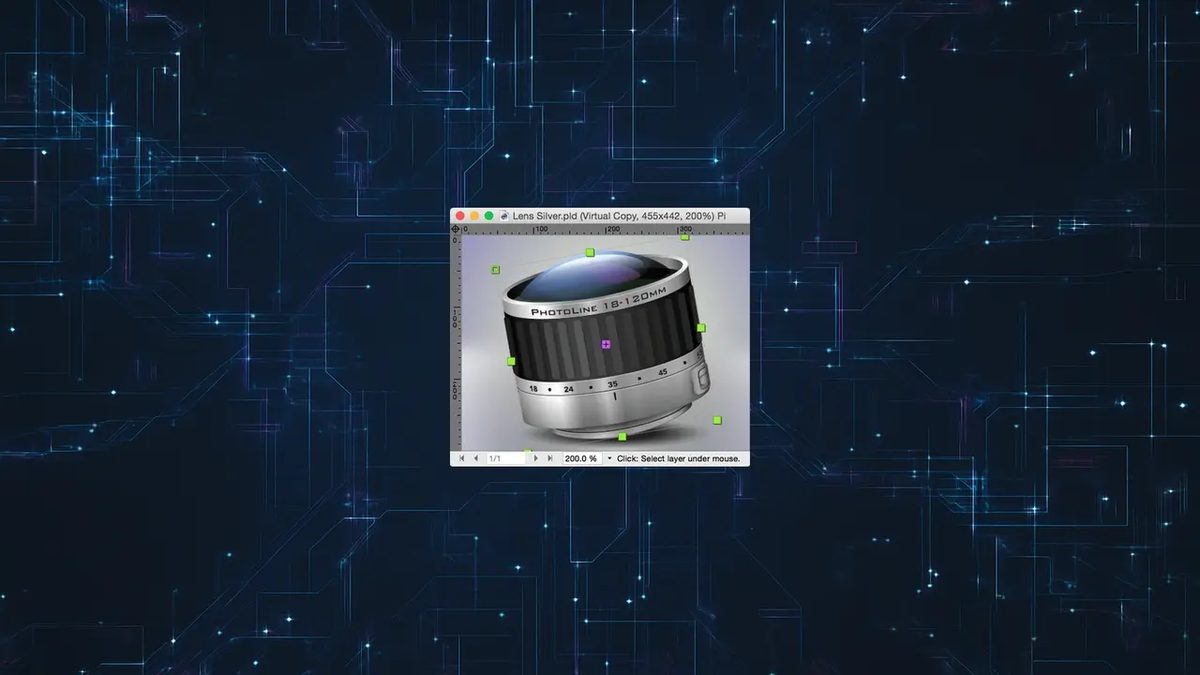
Most photo editors demand a monthly subscription. PhotoLine doesn’t.
This is the first thing you’ll notice when you open Computerinsel’s software. It’s a single, upfront purchase. No recurring fees. No forced updates that break your workflow. Just a tool that works.
It has been around for years. Long before “cloud-based creativity” became the buzzword of the decade. It runs on Windows 7 through 11. It runs on macOS. It even supports older hardware.
If you are looking for a professional alternative to Adobe Photoshop, this might be the spot for you.
Why PhotoLine Matters for Your Workflow
The interface looks familiar. If you have used Photoshop or GIMP, you will feel at home. It is sober. Modular. Clean.
But underneath that standard layout lies something rarer.
Dual functionality.
Most apps force you to choose. Bitmap or vector. Photo editing or graphic design. PhotoLine does both.
You can retouch a RAW photo from your DSLR. Then switch to creating a vector logo. No exporting. No file conversion. Just layers and tools.
“PhotoLine distinguishes itself by managing a vast number of image formats, ranging from digital camera RAW files to vector formats.”
This matters. Because switching between a bitmap editor and a vector program kills momentum. It breaks flow. PhotoLine keeps it intact.
The Technical Edge: Non-Destructive and Universal
Non-destructive editing is not a luxury anymore. It is a requirement.
PhotoLine handles this natively. You can tweak a curve. Adjust a mask. Change a filter. Then go back and change it again. Your original file remains untouched.
This is crucial for complex projects. Especially when clients change their minds. Or when you realize at 2 AM that the blue tint was too strong.
The format support is aggressive.
- PSD files (Photoshop)
- SVG
- AI files
You can open a file made in Illustrator and edit it in PhotoLine. You can open a PSD from Photoshop and save it back. The interoperability is solid.
Color management is where professionals usually get stuck. PhotoLine handles ICC profiles. It supports CMYK mode. This is essential for print work. If you send work to a printer, you need accurate color. This software respects that.
Where to Install and What It Costs
You download it from the official Computerinsel website. Or trusted tech portals like Futura.
There is a trial version.
It lets you test everything. The full suite of tools. The vector engine. The photo retouching suite.
There is a time limit. But you see everything. No features are hidden behind a paywall during the trial. This is smart. It lets you decide if it fits your niche.
System Requirements
The software is available in 32-bit and 64-bit versions.
- Windows: 7, 8, 8.1, 10, 11
- macOS: Recent versions
It does not run on Linux.
It does not run on Android or iOS.
The developers prioritize desktop stability. They are not trying to be an app for your phone. They are building a workstation tool.
Pricing Structure
The pricing is a single fee.
Compared to Adobe’s Creative Cloud, this is cheap. Compared to Affinity Photo, it is competitive.
You get updates. Security patches. New features. All included in that one price.
For students and schools, there are educational discounts. This makes it accessible for learning.
Installation
It is straightforward.
Download the installer. Run it. Follow the prompts. Enter your license key.
That’s it.
The support team is available if things go wrong. But most users report smooth installations.
One thing to check before you install.
Look at the technical prerequisites on their site. Or on the Futura listing.
Older machines might struggle. Not with the software itself. But with the GPU requirements for smooth rendering.
Is it worth switching?
For hobbyists, maybe not. You already have Lightroom. You have Snapseed.
For professionals? The price point alone is a strong argument.
The lack of a subscription model means you own the tool. Forever.
That changes the math.
And it changes the relationship with your software.
You are not renting. You are buying.
The question is whether the dual-engine workflow is enough for your daily grind.
For many, it is more than enough.

RAW Processing and Local Adjustments
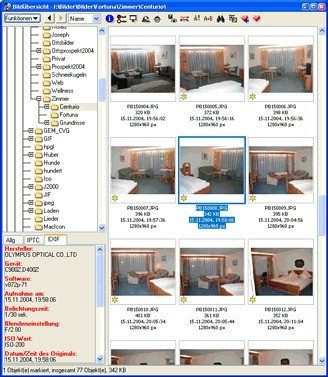
PhotoLine isn’t just a viewer. It’s a full-blown development suite. Photographers can dig into RAW files with tools that pull out details hidden in the shadows or blown-out highlights. The interface doesn’t hide the complexity. You get direct access to luminosity, contrast, saturation, and white balance. Noise reduction is built in for those high-ISO shots.
But the real power lies in precision. The software handles localized retouching with ease. Masks and layers work together to isolate specific areas of an image. You can adjust a face without touching the background. The entire photo remains intact. This is how professionals keep their edits clean and non-destructive.
Vector Graphics and Layout Design
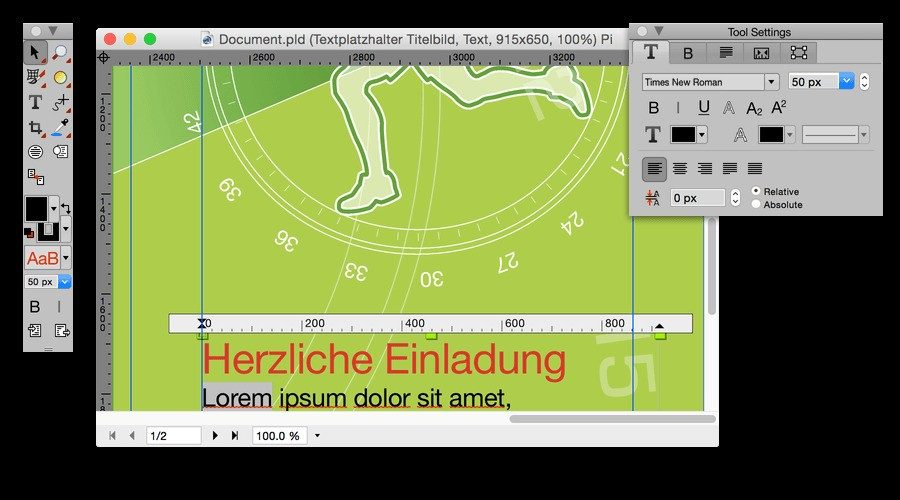
Move beyond pixels. PhotoLine blends bitmap images with vector elements. It’s a hybrid workspace. You can draw shapes, create enriched text, and manage objects all in one file. This makes it suitable for more than just photo editing. It’s a layout tool too.
Flyers, brochures, posters—these are within reach. The typography controls are robust. You can manage advanced font settings, create tables, and apply complex transparency effects. Gradient management is sophisticated enough for print-ready designs.
For professional output, color management is strict. CMYK support is native. This means your files are ready for the press machine, not just the screen. Interoperability is key. The proprietary format is sturdy, but exporting to standard formats is seamless. You aren’t locked in.
Batch Processing and Export Control
Speed matters. PhotoLine handles batch processing for photographers who have hundreds of images to correct. Apply the same adjustments across a whole shoot. The automation cuts down on repetitive work. It’s a significant time-saver in the workflow.
When you’re ready to share or print, the export options are granular. Control the format. Control the resolution. The software guides you from project completion to final publication. Whether it’s web optimization or high-res print files, the output is tailored to the need.
Community Support and Updates
Learning the software doesn’t require a degree. Documentation is extensive. Tutorials are available as guides or videos. They walk you through features step-by-step. Whether you’re new or experienced, the resources are there.
The community is active. Forums and FAQs allow you to swap tips with developers and other users. Specialized centers sometimes offer formal training, but the online resources are often enough to get up to speed.
Updates are straightforward. The software notifies you when a new version is out. You can also force a check from the menu. Staying current means better performance and bug fixes. Older versions are archived by some third parties, but sticking to the latest release is safer and ensures compatibility with current file formats.
Technical support is accessible through the official site. Issues like license recovery or installation errors are handled there. The ecosystem is alive. It evolves with the users who contribute to its growth. PhotoLine remains a flexible tool for creativity, not just a static application.

Why PhotoLine’s Technical Specs Actually Matter for Your Workflow
Most users skip the technical specs. They download, they click “next,” and hope for the best. That works for simple utilities. It does not work for a dual-engine image editor like PhotoLine. This software isn’t just a Photoshop clone. It combines bitmap retouching with vector drawing in one interface. That distinction changes everything about how you handle files, manage colors, and prepare for print.
Before you install, you need to know exactly what you are getting into. The compatibility list is specific. The feature set is dense. And the way it handles color can save or ruin a print job.
System Requirements and Compatibility
PhotoLine runs on Windows and macOS. That covers most desktop users. If you are on Linux, Android, or iOS, you are out of luck. There are no mobile versions or web-based alternatives. You need a dedicated machine.
The Windows compatibility list is thorough. It supports Windows 7 through 11. Both 32-bit and 64-bit systems are handled. The macOS version covers recent iterations of the operating system. This is good news if you are on an older machine. You don’t need the latest hardware to run it.
However, do not expect it to fly on a potato. The minimum configuration is vague, but the recommendation is clear. You need a standard computer with at least an HD screen. Low-resolution displays will make vector editing and layer management painful. Precision work requires pixels.
Internet connectivity is not required for offline use. You can download images, edit them, and save them without a connection. The web only matters for activation. It also matters for updates. If you want the latest features, you need to be online occasionally.
Color Management and Print Readiness
This is where PhotoLine separates itself from casual editors. It takes color seriously. If you work in graphic design or photography, this feature is non-negotiable.
The software supports ICC profiles. It handles RGB spaces for screen work. But the real power lies in CMYK support. Print workflows require CMYK. Screens use RGB. Moving between the two without a tool that understands color spaces is risky. You risk color shifts. You risk prints that look nothing like what you saw on screen.
PhotoLine manages this transition. It allows for non-destructive editing. Your original data stays intact. You can adjust curves, levels, and color balance without degrading the file. This is crucial for RAW processing. You get the flexibility of post-processing with the control of a professional suite.
Supported Formats and File Handling
You need to open files. You need to save them. PhotoLine covers the bases.
It handles RAW files from various camera manufacturers. You can develop these directly within the app. It is not just a viewer. It is a processing engine.
For standard image formats, the support is extensive.
– PSD files are fully supported.
– PDFs can be imported and exported.
– SVG and AI vector files work seamlessly.
– TIFF, JPEG, PNG, GIF, and BMP are all fair game.
This interoperability is key. You can pull assets from other tools. You can export to formats that clients expect. The software does not lock you into a proprietary ecosystem. It plays nice with the industry standards.
The interface is multilingual. You can work in your preferred language. This reduces friction. You spend less time translating menus and more time editing.
Installation and Licensing
Getting the software is straightforward. Avoid random download sites. Security is paramount.
Use the official Futura library. Or go directly to the Computerinsel website. These are trusted sources. You get a


