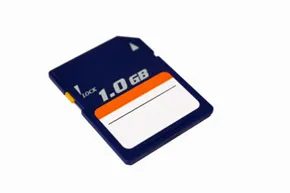
You’ve probably seen them. Those slim, rectangular pieces of plastic tucked into the side of a camera, hidden in a laptop, or sticking out of an older smartphone. They are SD cards.
It’s easy to dismiss them as just another piece of disposable tech. But if you look closer, the ecosystem around them is surprisingly rigid. The Secure Digital Association didn’t just throw a few names in a hat and hope for the best. Panasonic, SanDisk, and Toshiba got together in January 2000. Their goal? Standardize flash memory storage. SanDisk’s existing tech became the blueprint.
Today, the association sits in San Ramon, California. They don’t sell a single card. They don’t manufacture a single reader. Instead, they wrangle over 1,000 members—major electronics manufacturers who fight to keep the standards updated. These rules cover the physical card, the hardware drivers, and how data gets written to the silicon.
We often call them “memory cards.” That’s sloppy. It implies RAM. Random Access Memory is volatile. It vanishes when you pull the plug. An SD card is non-volatile storage. It uses flash memory to keep data sitting on solid-state chips even when powered down.
So why does this matter to you?
Because the physical shape dictates everything. You can’t force a full-size card into a phone slot. You can’t read a microSD card with a standard SD reader without an adapter. The variety isn’t random. It’s a response to shrinking devices and exploding file sizes.
Let’s break down the actual hardware.
The Standard SD Card
The original SD card is the big one. 32mm by 24mm by 2.1mm. It’s the size of a postage stamp with a bit of thickness.
You’ll find these in:
– DSLR and mirrorless cameras
– Older laptops
– Car entertainment systems
– Some GPS units
They offer robust storage. Early versions held 2GB. Later specs pushed that to 32GB (SDSC), then 64GB to 2TB (SDHC and SDXC). The “XC” stands for eXtended Capacity.
The key here is compatibility. A device built for a standard SD slot will accept the card. But the card isn’t just a block of storage. It has a controller chip. This chip handles error correction, wear leveling, and communication with the host device. Without it, you’d just have raw silicon.
The SDHC and SDXC Distinction
Not all SD cards are created equal. The association split the market by capacity.
SDHC (High Capacity) handles 4GB to 32GB. It uses the FAT32 file system. This was the sweet spot for years. Most cameras and phones settled here.
SDXC (eXtreme Capacity) goes from 64GB up to 2TB. It requires exFAT. You can’t just slap an SDXC card into a device that only understands SDHC without a firmware update. The file system matters. If your device can’t read exFAT, the card is useless, no matter how fast it is.
This is where users get tripped up. You buy a “high capacity” card for your camera. You plug it in. The camera says “card error” or “format required.” Why? The hardware doesn’t support the SDXC standard.
The microSD Factor
If the standard SD card is the SUV, the microSD card is the compact car.
It’s tiny. 15mm by 11mm by 1mm.
This form factor dominates mobile.
– Smartphones (though
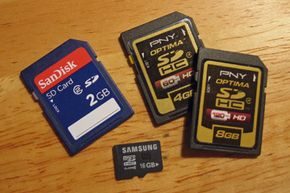
Know Your Form Factors and Capacities
You look at an SD card and see a flat, rectangular slab with copper pins along the edge. It’s deceptively simple. But the reality is messier. There are distinct form factors you need to navigate.
The standard size dominates. It measures 32 by 24 millimeters and is just 2.1 millimeters thick. You’ll find nine pins and a physical write-protection switch on the side. Flip that switch, and the card becomes read-only. Flip it back, and you can write data. This is the most common variant you will encounter.
Then there is the mini version. It shrinks to 20 by 21.5 millimeters. The thickness drops to 1.4 millimeters. It has eleven pins. It is far less common now. Even rarer is the micro version. At 15 by 11 millimeters and only 1 millimeter thick, it has eight pins. Its tiny footprint made it the natural choice for smartphones and mobile devices.
Capacity formats have evolved alongside these physical sizes. The hierarchy runs from oldest to newest.
- SD (Standard Capacity): Limited to 2 GB. You can buy these in all three sizes for under $10.
- SDHC (High Capacity): Ranges from 4 GB to 32 GB. Available in all sizes. Price points range from $10 to $100.
- SDXC (eXtended Capacity): Spans from 32 GB up to a massive 2 TB. You will only find these in the larger standard and micro sizes. Expect to pay starting around $80.
Hardware compatibility is not automatic. You need a reader that supports the specific capacity class. A standard SD card reader might physically accept the card, but it may not recognize the file system on an SDXC card. If you have a microSD card, you can use an adapter to fit it into a larger slot. Some manufacturers even bundle microSDHC cards with SDHC adapters for easy transfer.
But here is where users get tripped up. An older digital camera might take a standard SD card. If you insert a newer SDHC card, it fits physically. It does not mean it will work. The camera’s firmware may not support the higher capacity format. You must check your device’s specifications. Look for the SD logos that match your hardware’s supported capacity-size combination. The SD Association website catalogs these logos for verification.
Speed Class and UHS Speed Class Explained
Speed is often overlooked until it matters. For storing static files or taking still photos, speed is a secondary concern. But if you are shooting or playing back video, especially in high definition, it becomes critical.
A faster SD card ensures smoother playback and better quality video capture. The SD Association has established two distinct speed standards. They are not compatible. You must match the card to your recording device’s supported standard.
Speed Class applies to all SD cards. You will see a number inside a circular “C” next to the logo. This indicates the minimum sustained write speed.
- Class 2: Supports standard definition video. Maximum speed of 12.5 MB per second.
- Class 4 or 6: Handles HD video (720p, 1080i, 1080p). Maximum speed of 25 MB per second.
- Class 10: Required for Full HD (1080p). Also tops out at 25 MB per second.
For higher performance, look for Ultra High Speed (UHS) cards. These require the UHS-I bus interface. The circuitry inside allows read and write speeds up to 312 MB per second.
How do you identify a UHS card? The packaging might show the Speed Class number inside a “U”. On the card itself, look for the Roman numeral “I” to the right of the SD logo. It signifies the UHS-I interface.
Matching the speed class to your device prevents dropped frames and corrupted video files. It is a small detail that saves major headaches.
Now that you understand capacity and speed, the next layer of complexity involves security features.
How CPRM Keeps Your Media Safe
Commercial music and video distributors rely on Secure Digital cards for one specific reason: copy protection. The underlying technology is Content Protection for Recordable Media (CPRM). This system prevents illegal duplication of high-value content.
The architecture behind CPRM comes from the 4C Entity, LCC. This group manages copyright licensing for the SD standard’s founders: IBM, Intel, Panasonic, and Toshiba. They also built Content Protection for Pre-recorded Media (CPPM), which serves the DVD-Audio format. While CPRM and CPPM often appear together in discussions about flash and optical media, they serve distinct physical formats.
Why CPRM Doesn’t Activate Automatically
Simply buying an SD card does not trigger CPRM encryption. The protection layer must be actively established. A device writing data must first create a Media Identifier and a Media Key Block (MKB). These elements are written to a specific physical section of the card called the Protected Area.
Here is the critical detail many users miss: the Protected Area is inaccessible via the standard file system. You cannot browse or view these files on a typical computer. However, any device equipped with CPRM support can access this hidden sector to handle content protection operations.
The Mechanics of Encryption and Decryption
When you transfer protected content, the writing device uses the Media Identifier and MKB to encode the data. It essentially locks the file during the write process. Reading it back requires the same keys. A CPRM-enabled player accesses the hidden sector to decrypt the data on the fly.
This creates a significant barrier for pirates. If you copy the protected files to another drive or try to open them on a different device without CPRM support, the data remains garbled. You cannot read CPRM-protected files outside of a compatible ecosystem. The encryption ties the content to the specific hardware and authentication keys established during the initial write.
The Hardware Write-Protection Switch
Beyond software encryption, SD cards feature a mechanical security measure. Look at the side of any standard SD, SDHC, or SDXC card. You will see a small slider next to the gold contacts. This is the write-protection lock.
- Unlocked (Slide Up): The card allows both reading and writing. You can take photos, save files, or update data just like a standard USB drive.
- Locked (Slide Down): The card becomes read-only. The camera or device cannot overwrite or delete existing files.
This physical switch matters for data integrity. If you insert a memory card into a computer and are worried about accidental deletion or virus-induced corruption, sliding the lock engages a hardware-level restriction. The card refuses any write commands. It is a simple, physical safeguard against human error.
What Lies Beneath the Plastic
We have covered capacity limits, speed ratings, and the two layers of security that define the user experience. But the magic happens under the casing. In the next section, we will pop off the plastic shell to examine the actual circuitry and memory architecture inside.
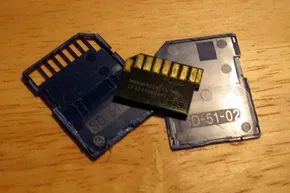
An SD card is a solid-state device. That is the defining characteristic. There are no moving parts. This absence of mechanical complexity is the primary reason it survived when floppy disks rotted out and optical media degraded.
Floppy drives relied on spinning plastic discs. They were fragile. Magnetic interference could erase your work in seconds. CDs and DVDs were larger, yes, but they suffered from physical wear. Each rewrite scratched the surface. Storage capability dropped with every cycle.
SD cards do not have these vulnerabilities. The components are embedded directly into the circuitry. The packaging is small. It is also tough.
Why Your SD Card Is So Hard to Open
We cracked one open for this article. It was not easy. The casing is designed to resist entry. This confirms the durability claim. You cannot just pop it open to check the chips inside.
Mini and micro sizes are more delicate. They flex. They break. Do not store these where they might bend, chip, or snap. The full-size SD card is rugged by design. The smaller versions require more care.
Flash Memory and Manufacturer Choices
Inside that durable shell is circuitry. Specifically, flash memory. We have covered how this works elsewhere. It controls electricity flow during write and erase cycles. The process is electrical, not mechanical.
All SD cards follow strict standards. These govern form factor, capacity, speed, and the common input/output interface. But here is the catch.
Different manufacturers design the flash memory and supporting components differently. The external shell and interface are standardized. The internal engineering is not. This means performance can vary between brands even if the speed class rating looks identical on the box.
Why You Should Use SD Formatter
Every SD card ships formatted with a File Allocation Table (FAT) file system. This ensures compatibility. Almost every operating system can read it. Windows, Mac, Linux, cameras, phones—they all speak FAT.
Sometimes you need to reformat the card. Maybe you want to “zero out” data for a secure wipe. Maybe the file system is corrupted after pulling the card during a critical write operation.
When you do this, use the SD Association’s SD Formatter tool.
Third-party disk formatters may not account for the Protected Area used in the SD card’s CPRM functions.
This is not just about convenience. It is about data integrity. Proprietary tools might ignore specific partitions. The official formatter knows where the Protected Area lives. It respects the CPRM functions built into the hardware.
Hardware and Software Friction
We have looked at the physical card. We have looked at the internal circuitry. We have looked at the formatting standards. But the hardware is only half the story.
The next layer involves challenges. Specifically, the interaction between the SD card hardware and the card readers used to access them. This is where data loss often happens. Not because the card failed. But because the connection failed.
Challenges in Using SD Hardware
Flash memory isn’t infinite. Toshiba, the company that pioneered the tech, puts a hard limit on endurance: roughly 10,000 write/erase cycles per cell. After that, the hardware can no longer reliably store or update data.
That sounds scary until you do the math. If you were to completely overwrite the entire card every single day, it would take 27 years to hit that limit. For most users, this lifespan is effectively permanent. The real wear and tear comes from physical mishandling.
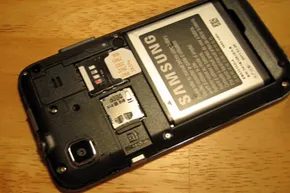
Cards slip out of pockets. They fall into dashboard crevices. They get buried under piles of mail. And they are fragile. Step on one, submerge it in coffee, and it’s trash. Sliding a microSD card into a reader is a dexterity challenge. If the card sticks out of a camera or phone, moving the device can snap it. You have to be vigilant. Treat the physical object with respect.
Compatibility is the next hurdle. Picking the right SD card for your device isn’t just about fitting the slot. You need to match capacity and speed. Walk into any electronics store and you’re staring at a wall of nearly identical black rectangles. Which one gives you the best value?
The answer lies in the logos. You need to know the difference between SD, miniSD, and microSD. And then the speed classes: SDHC, miniSDHC, microSDHC, SDXC, and microSDXC. Your device has a minimum requirement and a recommended speed. Ignore them, and you might get a card that works but writes data so slowly it’s unusable for 4K video or high-res photography.
Standards drift. Old tech becomes obsolete. With SD cards, the reader usually handles the backward compatibility. A new reader can likely still digest an old SDHC card. The problem arises with the devices themselves. If you have an older camera, you need cards that conform to older standards. The SD Association hasn’t retired any legacy formats yet. That means older cards will remain available for the foreseeable future, keeping vintage gear alive.
So where is this going? The format has held up, but the landscape is shifting.
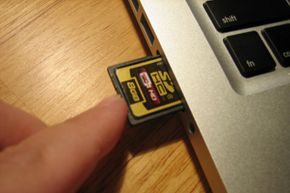
The trajectory is clear. SD cards aren’t going anywhere.
With thousands of devices relying on them, the technology is entrenched. The SD Association isn’t just maintaining standards; they are expanding them. Manufacturers contribute to flash-memory improvements, and the association codifies them. Look at UHS-II. It was in development to standardize even faster read-write speeds. Faster writes mean less waiting. Less waiting means better workflows.
But there’s another shift happening.
As SD card readers became ubiquitous in laptops and cameras, manufacturers hit a wall. They looked at the slot and asked a simple question: “Can you use that slot for other things besides flash memory?”
The hardware interface already provides power and data exchange. So why limit it to just reading and writing binary data?
Why SDIO Matters for Wireless Connectivity
The answer was SDIO.
The SD Association developed the SDIO card interface to bridge that gap. By adding an SDIO card interface to a device, manufacturers can adapt existing SD card readers to handle more than just storage. It’s not just about capacity. It’s about functionality.
The standard covers a wide range of functionalities. You’re not limited to saving files.
- Wireless connectivity using 802.11b Wi-Fi or Bluetooth
- Media capture through cameras and voice recorders
- Scanners and barcode readers
- TV and radio tuners
This is where the hardware gets interesting. The slot becomes a portal.
How Eye-Fi Changed the Game
Take the Eye-Fi card.
Founded in 205, Eye-Fi, Inc. introduced patent-pending technology that turned a standard SD card slot into a wireless upload station. The card includes a Wi-Fi radio and software designed to connect to a Wi-Fi network.
Once connected, it uses that link to upload photos directly to the web.
You don’t need a laptop. You don’t need to pull the card. You just shoot. The card sends the data to your computer or a photo-sharing site like Flickr or Facebook.
It works.
The cards range from $49.99 to $99.99. That’s a premium for what was essentially a Wi-Fi chip and a storage drive. But for photographers, the convenience outweighed the cost.
Will SD Cards Last?
The future for SD cards looks bright.
Why? Because of wide adoption and continuous improvement. The standards expand. The hardware gets better. The cost remains reasonable. Brand competition keeps prices in check.
We’ve seen the evolution from simple storage to complex connectivity. The SD card is no longer just a hard drive in a small package. It’s a computing platform.
Will it stay this way?
The SD Association keeps pushing. Manufacturers keep building. The demand is there.
For more information on Secure Digital memory cards, plug in to the next page.
Frequently Answered Questions
What does an SD card actually do?
An SD card is a type of memory card used for storing information. SD cards are used in many electronic devices, such as digital cameras, camcorders, laptops, and smartphones. Do SD cards give you storage?
Yes, SD cards give you storage.