Microsoft Photos (often simply called “Windows Photos”) has quietly become the central hub for viewing and organizing photos on modern Windows PCs. If you’re using Windows 10 or Windows 11, you probably already have it installed. It comes pre-installed on most new computers, and for older or Lite systems it is available directly from the Microsoft Store. The goal here is simplicity. It centralizes the messy work of images and short video clips on a clean user interface.
It works for everyone. Photographers use this to classify RAW and JPEG files. Casual users use it to quickly crop selfies or rotate upside-down landscape photos. It takes care of the tedious work of file management, so you don’t have to.
Core Microsoft Photos features
This application can open almost any image format you input. You can open JPEG, PNG, GIF, TIFF and even RAW files from professional cameras without any problems. It also plays video files. But the real value is more than just viewing files. The most important thing is how the software organizes your digital life.
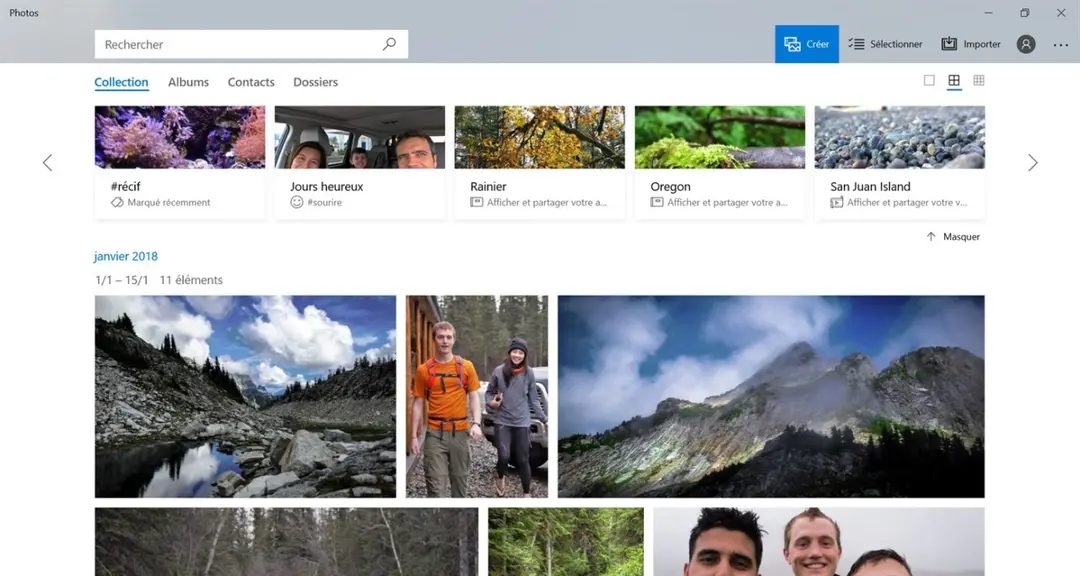
Automatic order and face recognition
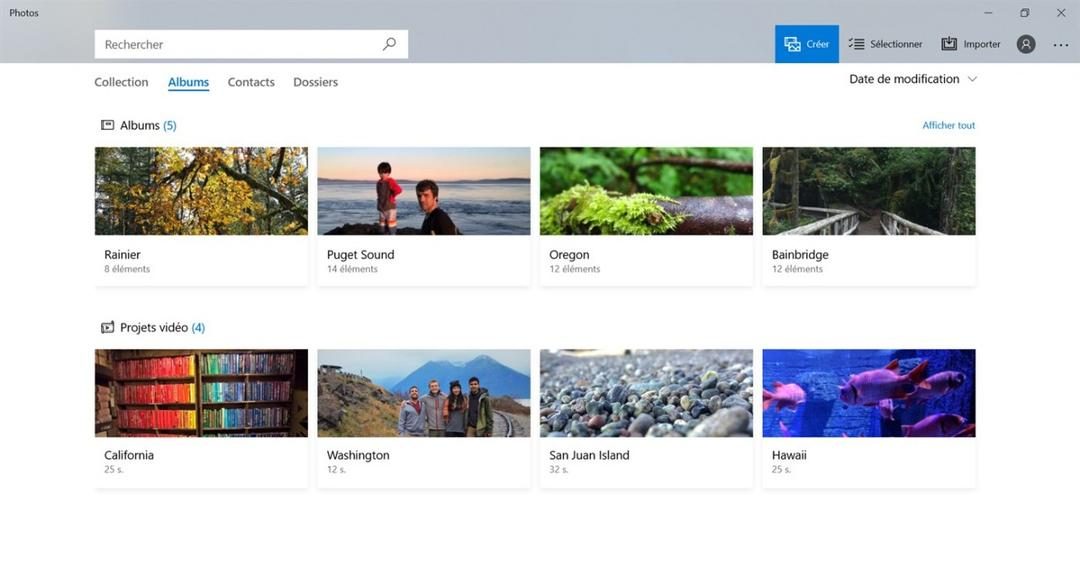
One of the most useful features is the optional facial recognition system. You can let the app scan your gallery and group your photos by people. This is important because manual tagging is tedious. When the artificial intelligence recognizes your face, you can create a smart albums. Show “John” and “Beach” with one click. The software does the rest.
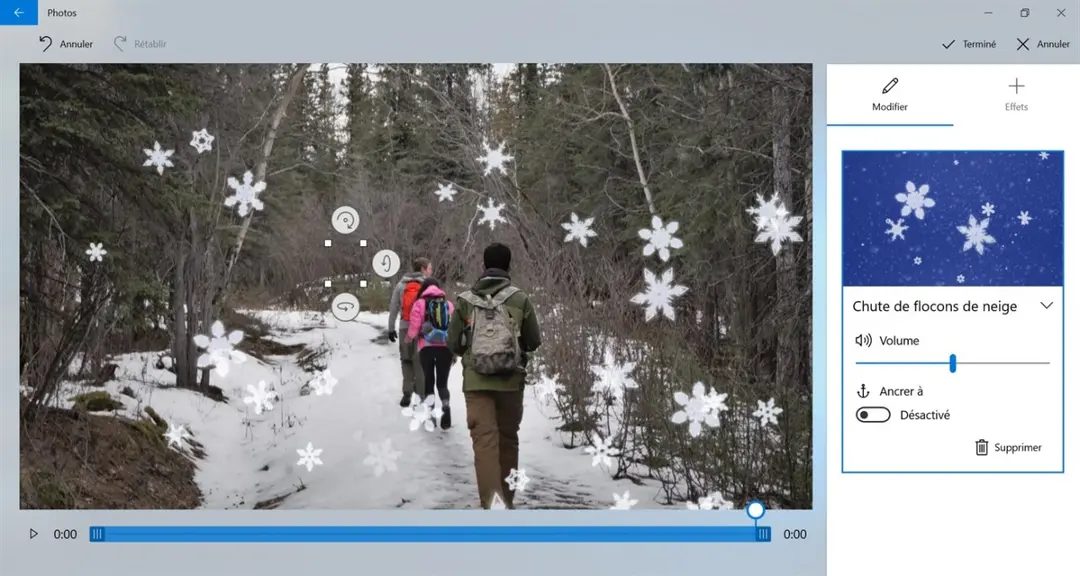
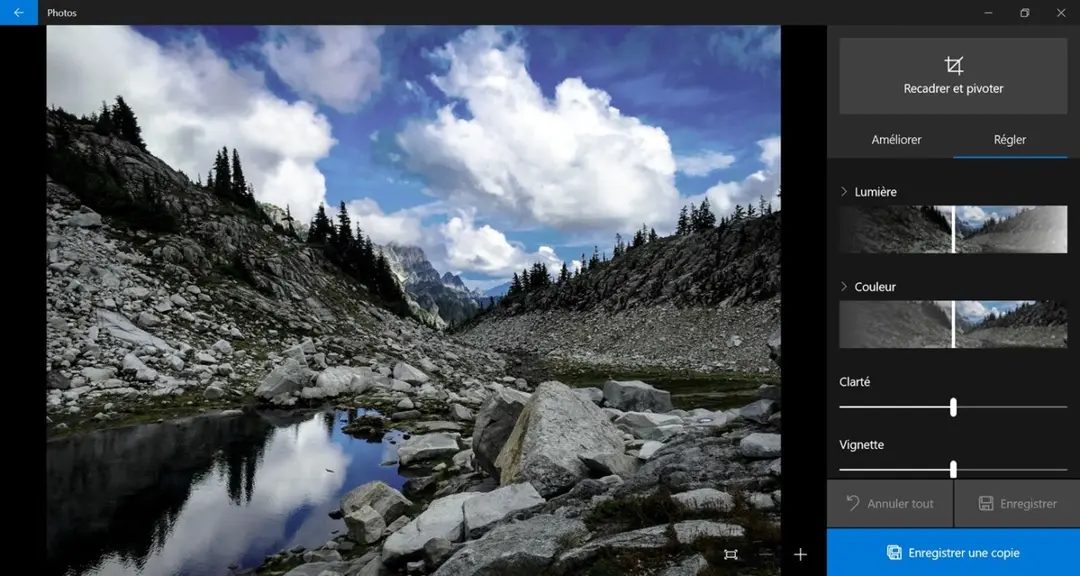
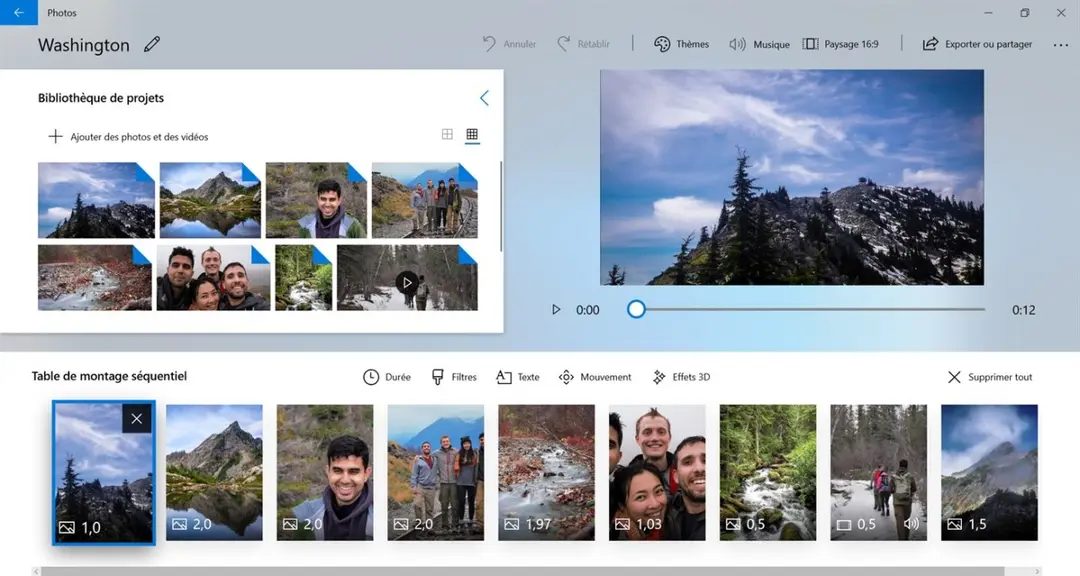
For basic editing, these tools are very easy. You can crop, rotate, adjust brightness and contrast. If you want a retro look, you can use creative filters. You can also combine slideshows and simple video clips without professional editing skills. Designed to be fast and frictionless.
“Microsoft Photo simplifies everyday tasks by providing a simple user interface that integrates harmoniously with the Windows ecosystem.”
Installation and compatibility restrictions
Getting apps is usually easy. Recent Windows installations already have this. If you can’t find it (perhaps on a custom PC or an older machine), you can download it for free from the Microsoft Store. Once installed, Windows Update keeps it up to date. There is no need to check patches manually. The software remains protected and automatically acquires new features.
However, there are major limitations. This software is only available for Windows. Not available on macOS, Linux, Android or iOS. If you’re an Apple user, use Apple Photos. If you have an iPhone, you can use Google Photos or the native iOS gallery. Microsoft Photos does not have a multi-use version.
This exclusivity is intentional. Microsoft wants tight integration with OneDrive and the Windows file system. They optimize their own ecosystem instead of building universal tools. Users using other platforms should find alternatives such as Google Photos or open source viewers.
License and version control
Microsoft Photos is free to use. A system component. The application is free as long as your Windows license is valid. You don’t need to buy the “pro” version or pay any subscription fees. This removes barriers for students, professionals or those on a budget.
However, I have my doubts about the updates. Microsoft aggressively pushes the latest versions. If you like an older stable version (perhaps because a recent update broke a feature you were relying on), you’re out of luck. Downgrading is difficult. Microsoft prioritizes security patches and the latest optimizations over backwards compatibility.
You also need a Microsoft account. Without it, you may not be able to take advantage of certain sync features, or you may not be able to reinstall the app if it gets corrupted. This convenience comes from what you can expect from Microsoft’s cloud ecosystem.
Who should use it?
For a normal Windows user, Microsoft Photos is enough. It can handle 90% of your tasks, such as viewing, organizing and simple editing of images. It is not a replacement for Adobe Lightroom or Photoshop. But for everyday use it is effective and free.
It appeals to people who want to keep their media in one place without the distraction of third-party software. Face recognition and smart photo albums reduce the time spent searching for specific photos. Video editing tools are basic but useful for home movies.
Is it perfect? No, the lack of cross-platform support is a huge gap in the multi-device age. But for those firmly in the Windows world, this is still the most seamless option. Integration with OneDrive automatically backs up your photos (assuming you’ve enabled this feature).
Applications are constantly evolving. New features are released regularly. Some users welcomed this change. Some people are against forced updates. However, the basic functions remain unchanged. A simple free tool for visual memory management in Windows.
What if Microsoft decides to change the interface again? Or when more AI features are integrated into the basic editor? Applications are becoming more powerful, but also more complex. Currently it works. You can organize and keeps your photos organized. Now you can share it. There are no expenses. For many, this is enough.
The future of photo management in Windows is likely to include even more AI integration. Expect smarter search and automation improvements. But for now, Microsoft Photos is a solid, if somewhat rigid, standard. It doesn’t try to be everything to everyone. It is trying to make it the best version for Windows users. In most markets this is exactly what is needed.
Microsoft Photos has quietly become the default photo management center for Windows, removing the clutter of the past and letting you focus on what’s really important: getting photos quickly. Unlike the traditional Windows Photo Viewer or third-party staples like XnView and IrfanView, which often feel like standalone utilities, Microsoft Photos is built into the fabric of the operating system. It’s not just about viewing files. It organizes them.
This app trades the granular control for ease of use of professional software like Adobe Lightroom and powerful open source tools like GIMP. There are no layers or complicated masks here. Instead, you get a streamlined user interface that prioritizes automation. Facial recognition scans your library and automatically sorts people into groups. Dynamic albums automatically update based on metadata such as location and date. Use the contextual search bar to instantly see related material when you type “dog” or “beach”. This reduces the hassle of finding a specific memory that previously required manual sorting through folders.
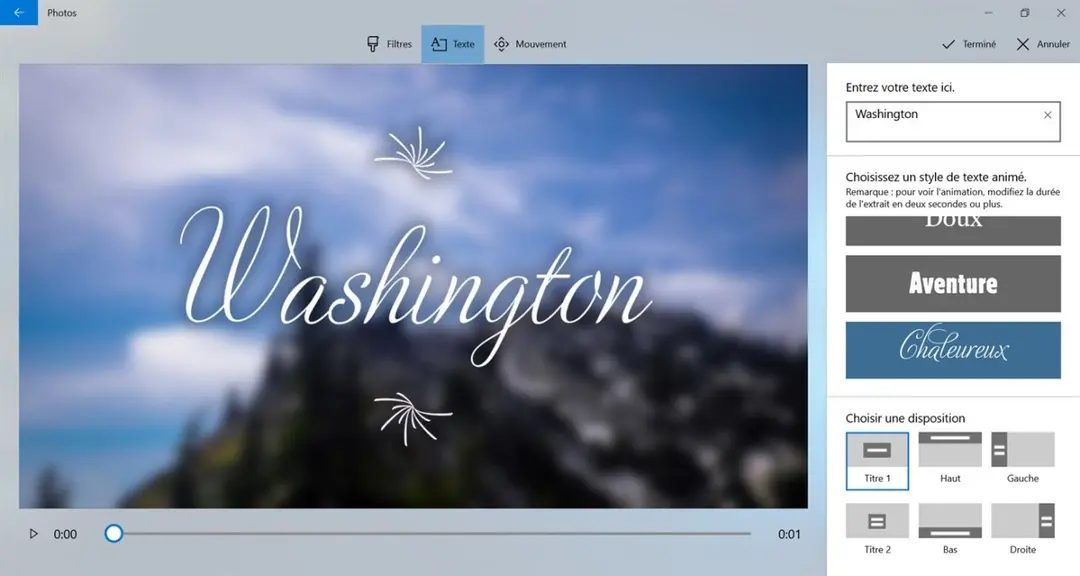
For everyday editing, this set of tools is surprisingly competent for the average user. With the help of sliders, you can crop, straighten, remove red-eye and adjust exposure and color balance intuitively, so you don’t need manual. There are certainly creative filters, but they are more subtle than overpowering. It also has built-in video editing features that allow for easy cropping and text overlays without the need for separate software.
The main selling point is the tight integration with OneDrive. Backing up photos is not a separate step. Usually automatic. This synchronization allows you to access your library between multiple Windows devices. Take a photo with your phone, back it up to the cloud, and it’ll appear in your desktop Photos app almost instantly. The seamless bridge between mobile capture and desktop management is the highlight of this app, providing a seamless experience that competitors struggle with.
For educators and parents looking to introduce digital literacy, Microsoft Photos serves as a gentle starting point. It’s not about learning complex editing techniques. It is important to understand file management, basic controls and digital organization. Guides and community forums are readily available for those who want to dig deeper, but the design of the app itself is self-explanatory. This is not an editor with a steep learning curve that scares beginners, but a basic tool that can grow with you.
Keep Microsoft Photos up to date and fix problems
Application updates usually happen in the background via Windows Update or Microsoft Store. There is little need for intervention. However, if you need the latest features right away, or if you suspect that your app is lagging, you can force an update. Open Microsoft Store, go to Library and click Get updates. This ensures that you are running a version with the latest security patches and performance tuning from Microsoft.
But what happens when things fall apart? Microsoft Photos is generally stable, but like all modern applications, it can encounter corruption and conflicts, especially after major Windows feature updates. Common issues can include slow loading times, missing thumbnails, and errors when opening certain types of files.
The first line of defense is usually a new installation. This app is a “UWP” (Universal Windows Platform) app, so it cannot be uninstalled in the traditional sense from the control panel. You need to go to the Microsoft Store, uninstall the app and reinstall it from there. This will remove corrupted local data, restore default settings, and resolve most errors.
Some users miss features that have been deprecated in the new version. Microsoft’s strategy is clear. We prioritize modern, integrated experiences over maintaining legacy features. If a feature does not meet current design language or performance standards, it will be removed. This means that you cannot easily go back to the old version. The way forward is not to go back, but to adapt.
The future of applications
Microsoft は、AI の進歩と手机手机に电影します Microsoft Photos をを电影ずいに攁善しいに攁善し image recognition, better handling of shared photo albums and more advanced but simple editing tools. They try to balance the needs of casual users who just want to see family photos and the needs of amateur users who want to do more with their photos.
The focus is on making the digital library feel alive. Instead of static folders, get curated collections that update automatically. As time goes on, AI will be able to label images more accurately. Video editing tools have been improved to handle 4K content more smoothly.
It will probably never replace software for professional workflows, but its strength lies in its ubiquity and simplicity. For the majority of Windows users, it is a powerful editor that you need to manage your visual memory, but is it the most effective way to work with photos on a daily basis. The app is constantly evolving, but we prioritize accessibility over complexity. This is a direction for many people to follow.
The technical backbone of Windows Photos
No more need for another gallery app cluttering the Start menu. Built-in Microsoft Photos. It is the native interface for managing visual life in Windows 10 and Windows 11. It’s designed to sit quietly alongside a file browser and handle viewing, easy editing and organizing without extensive third-party installations.
The architecture is simple. Depends on system level codecs and services. This means it reads JPEG, PNG and GIF files. Video support is extensive, covering standard formats natively handled by Windows. For powerful formats like HEVC/H.265 and HEIF/HEIC, you can get the extension from the Microsoft Store if you don’t already have it. This modular approach ensures compatibility when you need it, while keeping your basic footprint clean.
Compatibility and system requirements
Before you start, check your environment. The app is free. It comes pre-installed on most modern Windows PCs or can be downloaded directly from the Microsoft Store. Supports x64 and ARM64 architecture. This is important if you are using a newer laptop with a Snapdragon chip. The language of the user interface is synchronized with the settings of the operating system, so it adapts automatically.
Offline use is an important feature. If your photos are stored on your local hard drive, you don’t need an Internet connection to view or edit them. You only need connectivity to update apps through the Store, sync changes to OneDrive, and access files stored in the cloud. This isolation guarantees access to local libraries even during outages.
Privacy and accessibility controls
The app respects your privacy, but you must manage your settings. Facial recognition is optional. It is off by default. Index and search your photos locally without uploading metadata to the cloud. The application contains robust accessibility features. Screen reader compatibility is built-in. Users who want something other than a mouse can use keyboard navigation and zoom controls.
Updates take place through two channels. Microsoft Store sends app-specific updates. Windows Update handles system-level dependencies. This dual-path ensures that you receive security fixes and feature enhancements without manual intervention.
OneDrive integration element
The real power comes from the OneDrive integration. Photos can be stored on a computer, in the cloud, or both. This application manages this library centrally. When you add photos to your OneDrive folder, they appear immediately in the app. This sync feature is handy when you’re using photos on multiple devices. However, the initial uploads and synchronization require an internet connection.
For those concerned about storage space, this app lets you control what content you keep locally and what you move to the cloud. This is a flexible system. You don’t have to commit to one storage model. The ability to keep files offline while maintaining cloud storage makes this functional for both power users and casual photographers.
Why this is important for your workflow
Understanding these specifications is more than just checking a box. The key is to understand what your app can do before committing. If you shoot in RAW mode, you need an appropriate extensions. If you often work offline, you can rely on local storage features. This application is not a replacement for professional software such as Lightroom. This is for viewing, organizing and quick adjustments.
The user interface is consistent with the rest of Windows. This means less time to learn. Use familiar gestures. Drag and drop files. Use standard menus. Photos are designed to fade into the background while remaining organized and easily accessible.
Final considerations
Image program management on Windows is changing. Microsoft Photos is the current standard. It’s not perfect. Some users miss the advanced features of old, unsupported applications. However, for the average user, the basics are covered. It handles common formats. Sync with the cloud. Privacy settings are respected.
Is it the best option for everyone? Probably not. Specialists may still need special tools. However, for browsing family albums, organizing holiday photos and making minor edits before sharing, it’s enough. The most important thing is to understand its limits. It’s a viewer and organizer first. An editor second.
The surrounding ecosystem is constantly evolving. New features are introduced regularly. Checking compatibility is important in the following situations.
The discussion around accessibility in software development often stalls at the compliance checkbox, but the reality is messier and more nuanced. We have tools. We have standards. Yet, a significant portion of the digital public still finds itself locked out of basic functionalities. This isn’t just about legal liability. It’s about product design failing to account for the diverse ways humans interact with technology.
The gap between compliance and usability
Many organizations treat accessibility as a remediation project rather than a foundational principle. They run automated tests, fix the low-hanging fruit, and call it a day. But automated tools catch maybe twenty percent of issues. They miss the context. They can’t tell you if a screen reader user gets lost in a complex navigation flow because the headings aren’t structured logically. They can’t assess whether the color contrast works under bright sunlight for a user with low vision.
Accessibility is not a feature. It is a quality attribute. Like security or performance, it should be baked in, not bolted on.
The frustration for users with disabilities is often compounded by the fact that fixes are applied retroactively. This leads to clunky interfaces or features that feel like afterthoughts. A button might be large enough to tap, but if its label is unclear, it’s useless. A form field might be labeled correctly in the code, but if the error message is vague, it creates friction. These are not minor bugs. They are barriers to entry.
Why standard WCAG guidelines sometimes fall short
The Web Content Accessibility Guidelines (WCAG) provide a robust framework, primarily focused on the four principles: Perceivable, Operable, Understandable, and Robust. However, adhering to the letter of the law does not always guarantee a good experience. There is a difference between meeting the success criteria and being truly accessible.
Consider the requirement for alternative text on images. The guideline says to provide text alternatives for non-text content. But if the alternative text is “image of a person,” it provides no value. It’s technically compliant but functionally useless. Real accessibility requires descriptive, contextual alt text that conveys the meaning of the image, not just its existence.
Similarly, keyboard navigation is a core tenet. Many sites work fine with a mouse, but fail catastrophically when a user relies on the Tab key. The focus indicator disappears. Modal dialogs trap the user. Drop-down menus don’t close when they should. These issues are often overlooked in standard testing because most developers and QA testers use a mouse.
The business case for inclusive design
There is a persistent myth that making software accessible is expensive and time-consuming. This is largely a result of poor planning. Fixing accessibility issues after launch is exponentially more costly than designing for them from the start. It requires refactoring code, retesting, and potentially redesigning user interfaces.
Beyond cost, there is the sheer size of the market. The World Health Organization estimates that over one billion people worldwide experience some form of disability. This represents a significant consumer base. Ignoring accessibility means ignoring a huge segment of potential users. It’s bad business.
Moreover, accessible design often improves the experience for everyone. Closed captions on videos help not just deaf users, but also people watching videos in noisy environments or those who prefer to read along. Clear, high-contrast text aids users on small screens or in bright light. Voice commands assist users with motor impair