Every day, the internet generates billions of emails. If you are online regularly, you likely send a dozen or more without giving it a second thought. We take this for granted. But have you ever stopped to ask how that message travels from your laptop to someone on the other side of the planet? What exactly is a POP3 server doing with your mail?
The answer is surprisingly simple. Despite its complexity, email is built on a remarkably straightforward foundation.
The First Click
The story begins in 1971. Ray Tomlinson, an engineer, sent the first-ever email. Before Tomlinson, you could only message users on your own single machine. His innovation was connecting different machines across the nascent Internet. He used the @ symbol to designate the receiving machine. That convention still defines every email address today.
At its core, an email has always been nothing more than a simple text message. Early messages were short. Today, we attach files, making messages longer and heavier. But even with attachments, the fundamental structure remains text-based. We will see why that matters later.
What Your Email Client Does
You probably checked your inbox before reading this. To view these messages, you use an email client.
Some people prefer stand-alone software like Microsoft Outlook, Outlook Express, Eudora, or Pegasus. Others rely on web-based clients provided by free services like Hotmail or Yahoo. If you are an AOL user, you use their proprietary reader. It does not matter which client you choose. They all perform the same four basic functions:
- They display a list of messages in your mailbox using message headers. These headers show the sender, subject, time, date, and size.
- They allow you to select a header to read the actual body of the message.
- They let you compose new messages. You enter the recipient’s email address, add a subject, and type the content.
- They handle attachments, enabling you to add files to outgoing mail and save incoming ones.
Advanced clients might have bells and whistles. Filters, signatures, contact lists. But underneath the UI, this is all they do. They are just interfaces for a much simpler system.
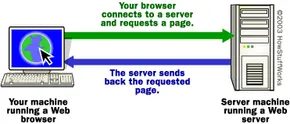
You have the client. You have the inbox. But without a backend to hand off the message to, you’re just shouting into the void. That’s where the email server comes in. It is the infrastructure that allows your client to connect, send, and receive mail.
To understand the real complexity later, you first need to grasp the absolute bare minimum. What does the simplest possible email server look like?
The Logic of Basic Servers
If you know how web servers work, you already have half the picture. Internet machines run applications that listen on specific ports. They wait for connections. Web servers listen for HTTP requests. FTP servers wait for file transfers. Email servers sit there, listening for mail data.
Imagine a server that strips away all the security, spam filtering, and high-availability redundancy. You are left with a machine running a single application.
Here is how the simplest version functions:
- It maintains a directory of accounts. Each person who can receive email has a unique identifier. Your account might be
mbrain. John Smith’s isjsmith. - For every account in that list, the server creates a corresponding text file. So,
MBRAIN.TXTandJSMITH.TXTexist in the server’s directory. - When you hit “Send,” your email client does two things. It connects to the server. It passes along the recipient’s name (
mbrain), the sender’s name (jsmith), and the message body (“Marshall, Can we have lunch Monday? John”).
The server doesn’t do much with this data. It formats these pieces of information. Then, it simply appends them to the bottom of the recipient’s text file.
The entry in MBRAIN.TXT might look like this:
From: jsmith
To: mbrain
Marshall, Can we have lunch Monday? John
There might be a timestamp. There might be a subject line. But the core process is brutal in its simplicity. The server takes the input. It writes it to a file. It goes back to sleep until the next connection.
This basic model highlights why email server configuration matters. Even in this stripped-down version, the server must accurately map usernames to files. If it gets the routing wrong, the message never reaches the text file. If the file permissions are wrong, the write fails.
Real-world implementations are far more robust than a simple append operation. They handle concurrent connections, verify sender identities, and manage massive storage arrays. But the fundamental principle remains. Data enters. It is directed to a destination. It is stored.
We will dive into the specific protocols that make this work, starting with the SMTP server, in the next section.
The early days of email were brutally simple. When people sent mail to mbrain, the server didn’t sort, store, or queue anything fancy. It just appended those messages to the bottom of a single text file as they arrived. That file accumulated five or ten messages. Eventually, I would log in to read them.
When I wanted to check my inbox, my email client connected to that server machine. The simplest possible system worked like this:
- It asked the server to send a copy of the MBRAIN.TXT file.
- It asked the server to erase and reset the MBRAIN.TXT file.
- It saved the file locally.
- It parsed the file into separate messages using the word “From:” as a separator.
- It showed all message headers in a list.
Double-click a header, and the client found that message in the text file and displayed its body. It was crude. It was basic. Surprisingly, the real email system you use every day isn’t much more complicated than that.
The Real Email System
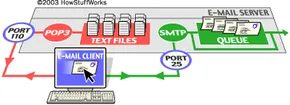
For most people, the infrastructure is split. The real email system consists of two different servers running on the same machine. One handles outgoing mail. The other handles incoming mail.
The outgoing side is the SMTP server. SMTP stands for Simple Mail Transfer Protocol. This is the engine that pushes your message out into the world.
The incoming side is either a POP3 server or an IMAP server. POP stands for Post Office Protocol. IMAP stands for Internet Mail Access Protocol. Both deal with getting mail to you.
A typical email server setup looks like this:
The SMTP server listens on well-known port number 25. POP3 listens on port 110. IMAP uses port 143. You can see how web servers work for details on ports if you’re curious about the plumbing.
The SMTP Server
Sending an email feels instant. You click “Send” and it’s gone. But underneath that simple action is a chaotic series of handshakes, lookups, and retries. It is not magic. It is protocol.
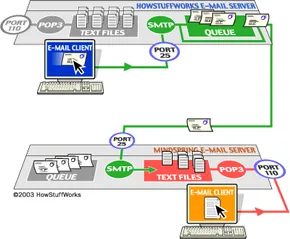
When you hit that button, your email client stops being the center of the universe. It hands the payload to an SMTP server. In my example, I am brain at howstuffworks.com. I want to talk to jsmith at mindspring.com. I am using Outlook Express.
The setup is simple. During account creation, I told Outlook Express that the mail server for howstuffworks.com is mail.howstuffworks.com.
Here is the step-by-step breakdown of what actually happens when that message leaves my machine.
The Handoff to the Local Server
Outlook Express opens a connection to mail.howstuffworks.com on port 25. This is standard. It is the default port for SMTP traffic.
The conversation is basic. I tell the server who I am. I tell it who I want to reach. I dump the body of the message into the stream.
The server looks at the “To” address: [email protected].
It splits the string. The local part is jsmith. The domain is mindspring.com.
If I had sent this to [email protected], the logic would be trivial. The server would recognize the domain, bypass the network entirely, and hand the message directly to the POP3 server via a program called the delivery agent.
But jsmith is elsewhere. The server has to leave the building.
Asking for Directions
The SMTP server cannot just guess where mindspring.com lives. It needs coordinates.
It queries a Domain Name Server, or DNS. The request is blunt: “Give me the IP address for the SMTP server at mindspring.com.”
The DNS replies. It provides one or more IP addresses. Mindspring might have multiple mail servers for load balancing or redundancy. The server picks one and connects.
The Inter-Domain Relay
Now mail.howstuffworks.com connects to smtp.mindspring.com (or whatever the resolved IP points to) on port 25.
The conversation repeats. The same simple text commands. The same structure. The HowStuffWorks server passes the message to the Mindspring server.
Mindspring looks at the recipient again. It sees jsmith and mindspring.com. It knows this user lives on its own hardware. It hands the message to its POP3 server. The message is deposited in jsmith’s mailbox.
What Happens When It Fails?
Networks drop packets. Servers go offline. Sometimes, the connection fails.
If mail.howstuffworks.com cannot reach Mindspring, the message does not disappear. It is not deleted. It is queued.
Most servers use a program called sendmail to handle this logistics. This creates the sendmail queue.
The queue is not static. It is persistent. Sendmail will periodically retry the delivery. The standard interval is often every 15 minutes.
This goes on for a while. Usually, after four hours, the system sends you a notification. It tells you there is a problem. It does not fix it. It just tells you it is trying.
After five days, most configurations give up. The mail is returned to you as undelivered. You get the bounce. You know it failed.
The Language of SMTP
The entire process relies on a very limited vocabulary. The SMTP server understands simple text commands. If you look at the raw traffic, you will see them.
Here are the commands that drive the engine:
- HELO – This is how you introduce yourself. It establishes the session.
- EHLO – This is also an introduction, but it requests extended mode. It signals that the client supports modern features.
- MAIL FROM: – You specify the sender here. This is your identity.
- RCPT TO: – You specify the recipient. This is the destination.
- DATA – This starts the body of the message. The headers (To, From, Subject) come first, then the content follows.
- RSET – Reset the current transaction. Start over without closing the connection.
- QUIT – End the session. Close the door.
- HELP – Ask for a list of supported commands.
- VRFY – Verify an address. Does this user actually exist?
- EXPN – Expand an address. Usually used for mailing lists.
- VERB – Verbose output.
These commands are the skeleton of email. They are old. They are text-based. They are surprisingly fragile. But they still move billions of messages every day.
The POP3 and IMAP Servers
In the simplest iterations of the POP3 protocol, the server isn’t doing much heavy lifting. It’s really just a dumb bucket. Specifically, it maintains a collection of plain text files—one per account. When a new message arrives, the server slaps it at the bottom of your file. No sorting. No indexing. Just append.
When you open your inbox, your client connects to this server on port 110. You type in your username and password. Once authenticated, the server unlocks that text file and lets you dig through it. The language of command is incredibly sparse. Think of it as talking to a robot that only knows a handful of words:
- USER – Send your ID.
- PASS – Send your password.
- QUIT – Leave the conversation.
- LIST – Show me the messages and their sizes.
- RETR – Retrieve message number X.
- DELE – Mark message number X for deletion.
- TOP – Show me the first X lines of message number Y.
Your email client strings these commands together to drag a copy of your mail down to your local hard drive. By default, it then deletes the originals from the server. The server is essentially a bridge between your client and that single text file. It’s so basic you can even connect via telnet on port 110 and issue these commands manually if you’re feeling nostalgic.
The IMAP Server
POP3 is useful if you like your email on your laptop and never on your desktop. It’s not useful if you want your mail to travel with you. The main limitation of POP3 is that once you download a message, it lives on that machine. Period.
This creates friction for people who toggle between a desktop in the office and a laptop on the road. You end up with fragmented inboxes. You check your phone, see the message, then check your laptop, and it’s gone.
Enter IMAP (Internet Mail Access Protocol).
IMAP flips the script. Instead of pulling messages down and deleting them, IMAP keeps everything on the server. Your folders, your flags, your folders within folders—they all stay on the remote machine. When you search for an email, you aren’t scraping your local disk. The server does the searching. This means any device you connect to sees the exact same state of your inbox.
It’s a more advanced protocol because it assumes you might want to interact with your mail without downloading every single byte to your local cache. You can organize, flag, and move messages, and those changes sync back to the server instantly.
IMAP Problems and Attachments
Email clients talk to IMAP servers over port 143. It’s a conversation built on simple text commands. You ask to list folders. You request message headers. You pull down specific emails. You delete old ones. You search the entire archive. It’s straightforward.
But there is a gap. If your mail lives on a server, how do you read it offline?
Most clients solve this by caching. They download messages and store the full content locally. Think of it like a POP3 setup, but the originals stay on the server. You have copies on your machine. Now you can read or reply without an internet connection.
When you reconnect, the sync happens automatically. New messages arrive. Sent mail moves out. The state updates.
Attachments and Encoding
You can attach files to emails. Word docs. Spreadsheets. Sound files. Software. Snapshots.
These are not text. Email bodies handle text. Binary data breaks the protocol. Someone had to fix this.
In the early days, you used uuencode. It was manual. You ran the program on a binary file. It took 3 bytes from that file. It converted them into four text characters. The logic is simple: take 6 bits, add 32, create a text character.
The result is an encoded version of the file. It contains only text. You pasted that text directly into your email message body. It worked. It was clunky.
Today, email feels simple. We forget that. The system changed society. It changed communication forever. Yet the core mechanism is surprisingly basic.
Routing rules in things like sendmail get complex. But the basic flow is clear. The next time you hit send, you will know exactly how it gets there.
Free and Paid Email Services
People don’t just use the internet to browse anymore. They rely on it to keep their lives organized. Sending and receiving email is the backbone of that digital existence. Whether you are closing a deal at work or checking in with cousins, the inbox is where it happens.
Back in March 2007, the Pew Internet and American Life Project noted that 91 percent of U.S. internet users were online to send or read email. Half of those users were doing it daily. That volume isn’t just a number. It’s a tidal wave.
the scale of email traffic
You might think you send a lot of messages. The Radicati Group’s October 2007 study puts things in perspective. In 2006 alone, 183 billion emails were sent every single day.
That kind of volume creates a market. A massive one. Users have a huge variety of providers to choose from. The landscape splits into two clear camps.
Free services.
Paid services.
The giants like Gmail and Yahoo! dominate the free tier. They operate on an advertising model. Advertisers pay to have their messages exposed to account holders. It’s a trade. You get free storage and tools; they get your attention.
On the other side, you have providers like America Online, Apple, and NetZero. These charge a fee. But why pay when the free options are so robust?
breaking down the big three
Reviews of various free email services reveal distinct personalities for each platform. Here is how the major players stack up.
Gmail
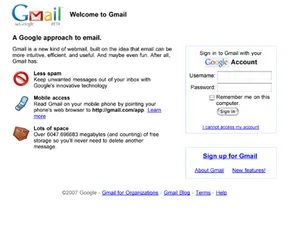
Gmail is Google’s answer to the inbox. It offers online storage that is practically unlimited. For heavy users, that matters.
The real power lies in its organization. Gmail provides sorting methods that let you sift through the noise. You can find important messages without drowning in clutter.
It isn’t perfect for privacy purists. As a free service, Gmail exposes users to contextual advertisements. These ads are based on keywords found in your messages. The system scans for spam, worms, and viruses, but it also scans for data to serve ads. It handles many different attachment types with ease.
Yahoo! Mail
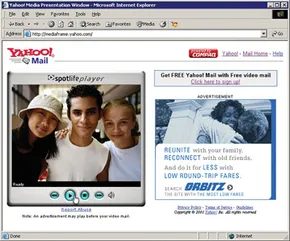
Yahoo! remains one of the most popular free services. It also offers unlimited online storage.
What sets it apart are the integrated tools. Yahoo! includes text messaging and RSS news feeds. The interface uses more than a dozen filters to file incoming emails automatically.
Junk mail gets sent to a spam folder. You can add emails to that folder manually if needed. The drag-and-drop organization tools are easy to use. For many, that simplicity is the selling point.
MSN Windows Hotmail
Hotmail is supported by Microsoft technology. It features 5 GB of online storage space. While smaller than “unlimited” claims, 5 GB is still substantial for most personal use.
The design is versatile. Users can customize the color and layout of their mail manager. There is a choice between a classic, familiar format and an updated look with new features.
Microsoft security features coupled with familiar drag-and-drop tools add comfort. If you are used to Microsoft products, Hotmail feels like a natural extension of your workflow.
when to consider paid email
Paid providers like Juno, EarthLink, and Webmail.us offer different value propositions. They often provide increased storage space, but that’s rarely the main draw.
The biggest advantage is customization. It is easier to get a personalized email address. You can incorporate your actual name. That looks professional. It looks permanent.
Paid services often allow users to keep the same email address even if they change their ISP. You aren’t locked into a provider’s infrastructure. They also screen users from advertisers. If you hate seeing ads in your inbox, this is a feature worth paying for.
Support issues are easier to resolve. Special features include custom spam filters, additional email accounts, and mobile access.
the hidden option
Don’t forget your ISP. Most internet service providers can serve as an email provider for no additional charge. It’s often buried in the settings, but it’s there.
Other paid email services specialize in small business accounts. They assist businesses in purchasing and maintaining a domain name. If you are running a company, a custom domain is non-negotiable.
For everyone else, the free tier is sufficient. The tools are powerful. The storage is ample. The trade-off with ads is manageable.
Next we’ll offer some etiquette tips for when you write and send email messages. The rules are different than you might think.
Why Your Email Tone Is Failing Before It’s Sent
You wouldn’t scream at a colleague in the hallway. You wouldn’t use slang with a client’s boss. But the moment you open an email client, those professional filters often dissolve. The screen creates distance. It makes rudeness easy to miss, even when it’s right there in bold font.
Most people agree that foul language has no place in business. But what about raising your voice? You can’t raise your voice in text. Or can you? The lines are blurry. And crossing them can cost you credibility fast.
Here is how to stop making enemies and start getting responses.
The Basics: Respect Their Time
People are busy. They are juggling Slack, Zoom, and their actual jobs. If you make them hunt for context, you’ve already lost.
Use the subject line. It’s not a suggestion. It’s a roadmap. If you skip it, you’re forcing the recipient to guess what’s inside. They are in a hurry. Give them the clue. It helps them triage. It helps them prioritize.
Be brief. I don’t care how witty you are. Save the puns for the birthday card. State the message. Then state the ask. Clear instructions beat clever prose every time.
Keep it personal. Stop cc’ing everyone on the team. It clogs mailboxes. It makes the main recipient wonder why they’re in the loop. Unless there is a specific, valid reason to copy someone, keep the conversation direct. One sender. One receiver.
Reply quickly. Even if you don’t have the answer yet. Say so. “I need more time” is better than silence. Silence looks like incompetence. Or indifference.
The Emotional Intelligence Gap
People are sensitive. Text lacks tone. It lacks nuance. You have to work harder to be clear.
Don’t over-punctuate. Question marks like “?????” or exclamation points like “!!!!” don’t convey urgency. They convey frustration. They look like you’re shouting. Use normal punctuation. Let the words do the heavy lifting.
Never use all caps. It reads as yelling. It’s aggressive. If you need to emphasize a point, write it out. “I’d like to emphasize that…” works. “DO THIS NOW” creates defensiveness.
Read it out loud. This sounds cheesy. It works. Put yourself in the recipient’s shoes. If you say the sentence out loud, does it sound harsh? Does it sound passive-aggressive? Once you hit send, you can’t take it back. Remember that the recipient has a printer. They have a forward button. Never write anything you wouldn’t want circulated company-wide.
Don’t write when you’re angry. This is the biggest trap. You feel the heat. You type the fire. You hit send. And then you can’t take it back. It comes back to haunt you. Walk away. Sleep on it. The email will still be there tomorrow. Your reputation might not be.
The Language Barrier
Not everyone is as “hip” as you are. Digital native slang doesn’t translate across generations or cultures.
Limit symbols. Emojis are trendy. They convey mood. But do you know the difference between a sarcastic smile and a mischievous one? Probably. Does your recipient? Maybe. Maybe not. The potential for unintended offense is too high. Avoid them.
Minimize abbreviations. IMHO. FWIW. ROTFL. These might be clear to you. They might frustrate and confuse the recipient. Clarity is king. If you have to explain the acronym, you’ve already failed.
Email is a business letter. It always has been. Ignoring the basic rules of formality shows disrespect. It signals that you think the recipient’s time is less valuable than yours. Don’t let informality ruin your professional standing.
Deeper Dives
If you want to understand the plumbing behind the mail you’re sending, look at the infrastructure.
How Web Servers Work explains the machines that receive your request.
How Domain Name Servers Work shows how you get from “google.com” to an IP address.
How Internet Infrastructure Works maps the physical cables and routers.
How Routers Work details the traffic cops of the web.
How Web Pages Work breaks down HTML and CSS.
How Bytes and Bits Work gets into the raw data.
How Computer Viruses Work reminds you why security matters.
For the technical standards that govern this mess, check RFC 822 and RFC 1123. They define the core protocols. Post Office Protocol is the old guard. It’s still relevant for some legacy systems.
The rules change. The technology evolves. The rudeness remains.