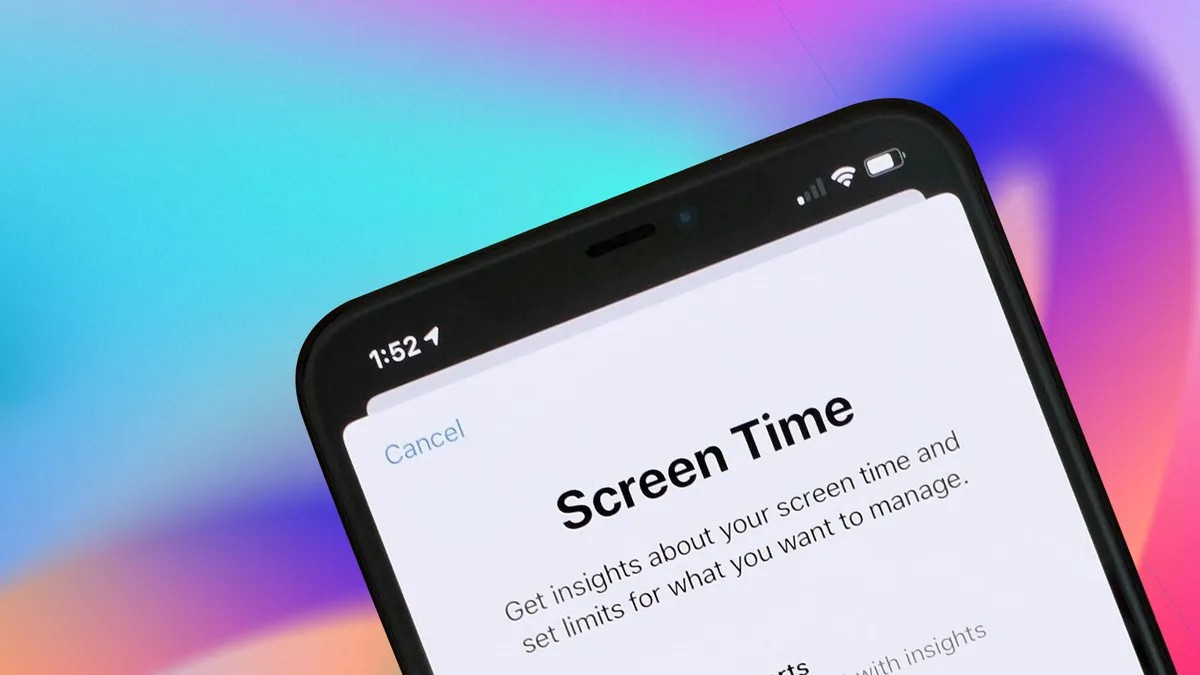
We all know.
That feeling in the back of your mind, whispering that you are spending way too much time staring at a black mirror. The data backs it up, of course. Average unlock rates hit over 150 a day. One weather check. One headline. Suddenly forty-five minutes vanish into the ether and you have absolutely nothing to show for the time lost.
Here is the kicker. The same machine feeding your addiction comes pre-loaded with the cure. Built right in. Ready to use. Most of us just never turn the switches on.
Giving up technology entirely? That is not the point. You are not moving to a cave. It is about setting actual boundaries. Real ones. Digital wellness tools on both phones and laptops exist to cap your usage, to give your brain a break, and to stop the constant drain of digital energy. It is the easiest way to protect your attention span.
So, how do we do it? Both Apple and Google have had our backs on this for a while now. iOS 16 and Android 13 started the trend, but the newer updates keep stacking features on top. It is time to find those settings.
Control the screen. Or it controls you.
Cap your app time on Apple devices
You can restrict specific apps on your iPhone, iPad, and Mac. It sounds simple. Add a timer, give yourself a hard limit, and when the clock runs out, Apple forces your hand. A notification pops up. A wall appears. Your scroll stops.
But first, check your notifications. If Screen Time can’t speak, the system is useless. Go to Settings, then Notifications, then Screen Time. Make sure you have allowed Time Sensitive Notifications. Without that, you are flying blind.
Once that is set, here is how to lock things down:
- Open Settings and tap Screen Time.
- Select App Limits.
- Hit Add Limit.
- Choose the apps or categories torturing you. Social media? Games?
- Tap Next.
- Set the duration. Be realistic, or don’t bother at all.
- Use Customize Days if you want weekends to differ from workdays.
- Hit Add.
The notification hits you with five minutes left. Then it stops. The app goes dark. An overlay demands you tap OK to exit. Sure, you can hit Ignore Limit if something is urgent. You can break the rule. But the app grays out on your home screen anyway. It is a visual reminder of what you just gave up.
Schedule silence with Downtime
Sometimes app timers are too granular. Sometimes you just need to stop touching the glass entirely. Enter Downtime.
It does what it says. You pick a window, and the phone tells you to put it down. It is not a hard block by default, but the notifications are persistent enough to make you think twice.
Setup is basic:
- Go to Settings > Screen Time.
- Tap Downtime.
- Toggle the switch next to Scheduled.
- Set the start and end times.
Now the device fights for your attention only when you decide to let it have some back.
Set limits on Android
Android handles this similarly. Whether you have a Pixel, a Samsung Galaxy, or anything else running the green robot’s OS, the interface is slightly different but the goal is the same. Limit the time. Reset at midnight. Simple.
Open your phone’s Settings.
Tap Digital well-being and parental controls.
Find the graph that tracks your usage.
Scroll until you find the culprit app.
Tap the hourglass icon next to it.
Set your daily allowance.
Tap OK.
That is it. When you hit zero, the app locks out until the calendar rolls over. It does not negotiate.
Get your sleep back with Bedtime Mode
Night scrolling is its own beast. Doomscrolling into 2 a.m. destroys sleep quality, mood, and next-day focus. Android offers a specific mode for this, separating “quiet time” from actual bed time. It is called Bedtime mode, and it ties into your routine.
To set it up:
- Head to Settings > Digital well-being and parental controls.
- Select Bedtime mode.
- Choose Bedtime routine.
- You can pick a custom schedule, or link it to Turn on while charging. The latter is often better because it forces a connection between your habits. If the phone is on the charger, it knows you are done for the night. Set your time frame. Done.
These tools are sitting in your pocket right now. Ignored. Hidden behind layers of settings menus you probably have never visited. Why do you keep unlocking the door for distractions that offer you nothing?
Find them. Turn them on.
Or don’t. The scroll continues, after all.